Have you ever looked at the top of your Android phone and noticed a strange symbol you could not recognize?
Perhaps you saw a small key, triangle, green dot, crossed-out speaker, or unfamiliar network indicator.
These tiny icons can leave you wondering what your phone is doing and whether something needs your attention.
Android symbols provide information about your smartphone’s activities, settings, connections, notifications, and security features. Some indicate that your phone is connected to Wi-Fi, while others show that an application is using your camera or microphone. You may also see warning icons when your device experiences a network problem or detects an issue.
However, Android does not use exactly the same icons on every smartphone. Samsung Galaxy, Google Pixel, Motorola, Xiaomi, and OnePlus devices may display different designs because manufacturers customize their interfaces.
This guide explains Android symbols and their meanings with easy descriptions, examples, and practical instructions. You will learn how to identify status bar icons, notification symbols, battery indicators, warning signs, privacy alerts, and manufacturer-specific symbols. You will also discover why unfamiliar icons appear and how to remove or manage them.
What Are Android Symbols?
Android symbols are small graphical icons that communicate information about your smartphone. They appear in different areas of the screen, including the status bar, notification panel, navigation bar, and Quick Settings menu.
Each symbol has a particular purpose. Some show the current condition of your phone, while others indicate that an application or system feature is performing an activity.
For example, a battery with a lightning bolt means your phone is charging. A Wi-Fi symbol indicates a wireless network connection, while a small green privacy indicator can alert you that an application is accessing your camera or microphone.
Android symbols generally belong to these categories:
- Status bar symbols: Display battery levels, network signals, time-related information, and active phone features.
- Notification symbols: Identify messages, emails, missed calls, reminders, and application alerts.
- Network symbols: Show Wi-Fi, mobile data, Bluetooth, roaming, and other connections.
- Battery symbols: Communicate charging status, remaining power, and battery-saving activity.
- Privacy symbols: Indicate when applications access sensitive features such as the camera and microphone.
- Navigation symbols: Help you move between applications, return home, and open previous screens.
- Quick Settings symbols: Provide shortcuts for frequently used Android features.
- Warning symbols: Alert you to connectivity issues, system problems, or other conditions requiring attention.
The exact appearance of an icon depends on your phone manufacturer, Android version, software interface, and installed applications.
Complete Android Symbols List With Pictures and Meanings
The following chart provides a quick reference for common Android symbols. Use it to identify unfamiliar icons before exploring their detailed explanations.
| Android symbol or appearance | Meaning |
| Wi-Fi curved lines | Wi-Fi is connected or active |
| Signal bars | Cellular network strength |
| 3G, H, H+, 4G, LTE | Mobile network technology |
| 5G | Connected to a 5G network |
| Airplane | Airplane Mode is active |
| Bluetooth logo | Bluetooth is enabled |
| Location pin | Location services are active or being accessed |
| Small key | Commonly indicates an active VPN |
| Alarm clock | An alarm is scheduled |
| Crescent moon | Do Not Disturb is active on many devices |
| Crossed-out speaker | Sound is muted |
| Vibrating phone | Vibration mode is active |
| Battery with lightning | Battery is charging |
| Low battery | Remaining battery power is low |
| Battery with leaf | Battery-saving feature is active on some devices |
| Green privacy indicator | Camera or microphone access may be active |
| Phone receiver | Call-related activity |
| Voicemail indicator | New voicemail |
| Downward arrow | Download activity |
| Circular arrows | Synchronization activity |
| Cloud | Cloud backup or synchronization |
| Screen recording indicator | Screen recording is active |
| Triangle with exclamation mark | Warning or error requiring attention |
| Crossed-out SIM | SIM card or cellular connection problem |
| Hotspot indicator | Mobile hotspot is active |
| NFC indicator | Near Field Communication is enabled |
| Cast symbol | Screen casting or media sharing |
| USB indicator | USB connection or tethering activity |
These descriptions are general references, not universal icon definitions. Some manufacturers use different designs, and certain indicators appear only while a feature is active.
Android Status Bar Symbols and Their Meanings
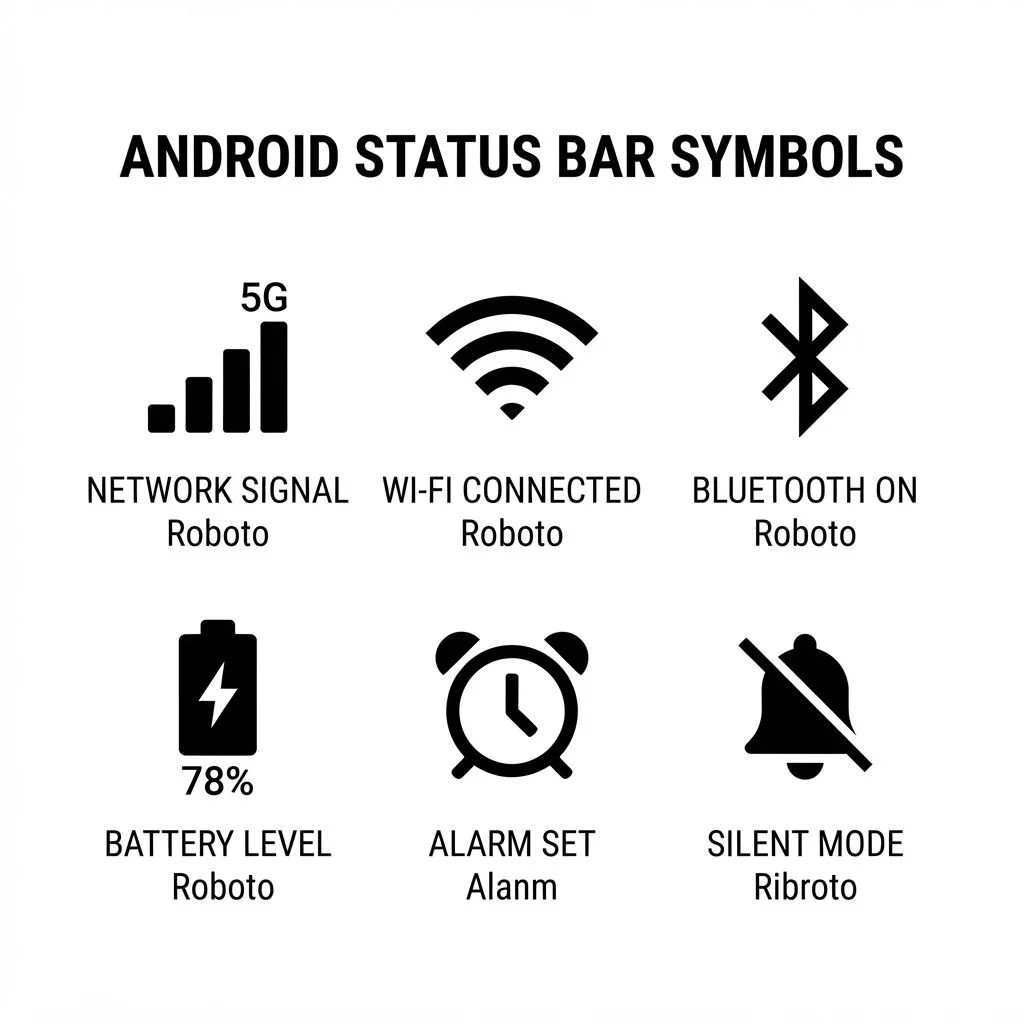
The Android status bar is the narrow area at the top of your smartphone screen. It usually displays the time, network information, battery level, and notification indicators.
When you open an application, you may still see these symbols unless the app uses a full-screen display.
Understanding status bar symbols helps you recognize your phone’s current condition without opening multiple settings pages.
Wi-Fi Symbol
The Wi-Fi symbol looks like several curved lines arranged above a small dot. It indicates that Wi-Fi is enabled or that your phone is connected to a wireless network, depending on the displayed state.
When your device connects to a home, office, or public Wi-Fi network, the icon generally appears in the status bar.
However, seeing a Wi-Fi symbol does not always mean the internet is working. Your phone might connect to a router that has no active internet connection.
If you notice an exclamation mark beside the Wi-Fi symbol, check your router, internet service, or network connection.
Mobile Signal Bars
The mobile signal symbol consists of vertical bars that increase in height. These bars indicate the strength of your cellular network reception.
More filled bars generally mean a stronger signal, while fewer bars suggest weaker reception.
You may experience weak signals when:
- You are inside a basement or enclosed building.
- You are far from a cellular tower.
- Thick walls block network reception.
- Your mobile provider has limited coverage in your area.
- Temporary network problems affect your connection.
If the bars disappear completely, your phone may display a no-signal indicator.
3G, H, H+, 4G, and LTE Symbols
These letters and numbers identify the mobile network technology your phone is using.
| Symbol | Meaning |
| 3G | Third-generation mobile network |
| H | HSPA mobile connection |
| H+ | Enhanced HSPA connection |
| 4G | Fourth-generation mobile network |
| LTE | Long-Term Evolution technology |
These indicators may change as you move between locations with different network coverage.
For example, your phone might display 4G in one area and switch to H+ when the stronger network becomes unavailable.
5G Symbol
The 5G symbol indicates a connection to a fifth-generation cellular network.
5G technology can provide higher download speeds, improved network capacity, and lower latency than many older mobile connections.
However, the icon does not guarantee that you will always receive the same internet speed. Performance depends on network coverage, carrier support, device compatibility, signal quality, and local network conditions.
Bluetooth Symbol
The Bluetooth symbol resembles a stylized letter B with pointed edges.
It indicates that Bluetooth is enabled or available for wireless connections.
You can use Bluetooth to connect your Android phone to:
- Wireless headphones.
- Bluetooth speakers.
- Smartwatches.
- Wireless keyboards.
- Car audio systems.
- Other compatible devices.
If you no longer need Bluetooth, you can disable it through Quick Settings.
Airplane Mode Symbol
The airplane symbol indicates that Airplane Mode is active.
This feature disables cellular connections so your phone cannot make ordinary cellular calls or use mobile data through its regular network connection.
Wi-Fi and Bluetooth may also turn off initially. However, many Android devices allow you to enable them separately while Airplane Mode remains active.
Airplane Mode is useful during flights, when troubleshooting network problems, or when you want to disconnect from cellular services temporarily.
Location Symbol
The location symbol generally looks like a map pin, navigation arrow, or small location marker.
It indicates that location services are enabled or that an application is accessing your device’s location.
Common applications that use location information include:
- Google Maps.
- Weather applications.
- Ride-sharing services.
- Navigation tools.
- Fitness applications.
- Location-sharing services.
If you see an unfamiliar location indicator, check your phone’s privacy settings to understand which application has location permission.
Key Symbol
A small key symbol commonly indicates an active VPN connection on Android.
VPN stands for Virtual Private Network. It creates an encrypted connection between your phone and a VPN service.
You may see this icon when using a VPN application for work, privacy, or secure internet access.
If the key appears unexpectedly, open your network settings and check whether a VPN is running. Some security and filtering applications may also establish VPN connections.
Alarm Clock Symbol
The alarm clock symbol means that an alarm has been scheduled.
It usually appears after you create an alarm through your phone’s Clock application.
If the symbol remains visible, open the Clock app and review your active alarms. You may have an old alarm enabled that you no longer need.
No Signal Symbol
The no-signal symbol usually appears as crossed-out signal bars or another network warning indicator.
It means your phone cannot establish a normal cellular network connection.
Possible reasons include:
- Poor network coverage.
- Airplane Mode being active.
- A missing or damaged SIM card.
- A temporary carrier outage.
- Incorrect network settings.
Try moving to an area with better coverage. If the issue continues, check your SIM card and contact your mobile provider.
Less Common Android Status Bar Symbols You Should Know
Not every Android symbol represents a basic phone feature. Some indicators appear only during particular activities or when specific services are enabled.
These less common icons are worth understanding because users often mistake them for warnings or unfamiliar application notifications.
Roaming Symbol
The roaming symbol may appear as the letter R or another network indicator.
It means your phone is using a cellular network outside its usual home network.
This commonly happens when you travel internationally or enter an area where your provider uses another network for coverage.
Roaming can involve additional charges depending on your mobile plan. Check your carrier’s roaming policy before using mobile data abroad.
Vibrate Mode Symbol
The vibration symbol usually looks like a phone with small curved lines on its sides.
It indicates that your device is using vibration instead of ordinary ringtone alerts for supported notifications and calls.
This mode is useful during meetings, classes, libraries, and other quiet environments.
To change it, open your sound settings or use the volume controls.
Mute or Silent Mode Symbol
The mute symbol may look like a crossed-out speaker or a bell with a line through it.
It indicates that sound alerts are muted or that your phone is using a silent sound profile.
However, silent mode and Do Not Disturb are not always identical.
Silent mode mainly controls sound, while Do Not Disturb can manage which calls, notifications, and alerts are allowed to interrupt you.
Active Call Symbol
A phone receiver symbol may appear while you are making or receiving a call.
It can indicate an ongoing call or another call-related activity.
Some Android phones also display separate symbols for missed calls, incoming calls, and calls placed through Wi-Fi Calling.
Open your Phone application if you need to review recent call activity.
Microphone Muted Symbol
A crossed-out microphone commonly indicates that the microphone is muted during a call, meeting, or supported recording activity.
For example, you might see this indicator while using a video conferencing application.
It does not necessarily mean that every application on your phone has lost microphone permission. Check the active application before troubleshooting.
Wi-Fi Calling Symbol
The Wi-Fi Calling indicator commonly combines a phone receiver with Wi-Fi waves.
It means your phone and mobile provider support calling through a Wi-Fi connection.
This feature can improve calling availability in places where cellular reception is weak but Wi-Fi is reliable.
Availability depends on your device, carrier, account, and region.
Data Saver Symbol
The Data Saver indicator may appear as a data-related symbol or another manufacturer-specific icon.
Data Saver helps reduce mobile data consumption by restricting certain background activities.
For example, some applications may delay automatic updates or background synchronization while Data Saver is active.
You can review this feature under your network or data usage settings.
Sync Symbol
The synchronization symbol usually consists of two circular arrows.
It indicates that your phone or an application is synchronizing information.
Examples include:
- Email synchronization.
- Calendar updates.
- Contact synchronization.
- Cloud account updates.
- Application data synchronization.
A temporary sync indicator is generally normal. If synchronization continues for an unusually long time, check your internet connection and account settings.
Cloud Backup Symbol
A cloud symbol may indicate that your device is backing up information or synchronizing files with an online service.
Depending on the application, this activity may involve photographs, documents, contacts, or device settings.
A cloud icon alone does not prove that every file has been successfully backed up. Open the relevant backup application to check its status.
USB Tethering Symbol
A USB-related indicator may appear when your phone connects to a computer through a cable.
If USB tethering is enabled, your phone can share its mobile internet connection with the connected computer.
This is different from ordinary USB charging or file transfer.
Check your connection settings to understand which USB mode is active.
NFC Symbol
NFC stands for Near Field Communication.
It allows compatible devices to exchange information over short distances.
Android phones commonly use NFC for contactless payments, compatible accessories, and other supported interactions.
Some phones display an NFC indicator when the feature is enabled, while others do not show a permanent status icon.
S Pen Connection Symbols
Supported Samsung Galaxy devices may display different S Pen indicators.
These can communicate whether the stylus is connected, disconnected, or running low on battery.
If the S Pen disconnected symbol appears, check whether the stylus is properly attached to its storage area and whether your device can detect it.
The exact indicators depend on the Galaxy model and S Pen features.
Android Notification Symbols and Their Meanings
Notification symbols alert you when an application or system service has information that needs your attention.
They can appear at the top of the screen, inside the notification panel, or beside application icons on your home screen.
Unlike system status indicators, notification icons often belong to individual applications. Gmail, messaging services, calendar applications, and social media platforms may each use their own designs.
| Notification symbol or appearance | Meaning |
| Gmail envelope | New email |
| Message bubble | New message |
| Phone receiver | Missed or incoming call |
| Voicemail indicator | New voicemail |
| Calendar symbol | Upcoming event or reminder |
| Download arrow | File downloading |
| Upload arrow | File uploading |
| Google Play icon | Application update or store notification |
| Cloud symbol | Backup or synchronization activity |
| Screenshot preview | Screenshot captured |
| Screen recording icon | Screen recording activity |
| App notification dot | Unread or pending notification |
Message Notification Symbol
A message notification symbol usually appears as a speech bubble or messaging application logo.
It tells you that a new message has arrived.
Depending on your phone, it may represent an SMS, MMS, Google Messages, WhatsApp, or another messaging service.
Tap the notification to open the conversation.
Missed Call Symbol
The missed call symbol commonly appears as a phone receiver with an arrow or another call-related design.
It tells you that someone attempted to call while you did not answer.
Open your Phone app to identify the caller and review the time of the missed call.
Voicemail Symbol
The voicemail symbol indicates that someone has left a voice message through your mobile carrier’s voicemail service.
Its appearance differs between Android manufacturers and network providers.
Open your Phone app and check the voicemail section to listen to the message.
Gmail Notification Symbol
The Gmail notification symbol uses the familiar envelope design associated with Google’s email service.
It appears when Gmail receives a new email or generates another notification.
Tap it to read the message or open Gmail to manage your inbox.
Calendar Reminder Symbol
A calendar-related notification indicates an upcoming event, appointment, or scheduled reminder.
It may appear when Google Calendar or another calendar application sends an alert.
Tap the notification to review the event details.
Download Symbol
A downward-pointing arrow generally indicates that your phone is downloading a file or application.
For example, this symbol may appear when you download a document, image, video, or application update.
You can check the notification panel to monitor the activity.
Upload Symbol
An upward-pointing arrow may indicate that your phone is uploading information.
This can happen when you upload photographs, share documents, or synchronize files with a cloud service.
Some applications display their own progress indicators rather than using a universal Android symbol.
Screenshot Symbol
The screenshot symbol appears after you capture your phone screen.
Android may display a small image preview with options to edit, share, or delete the screenshot.
You can also find saved screenshots in your Gallery or Photos application.
App Notification Dot
A notification dot appears as a small circle on or near an application icon.
It indicates that an app has an unread notification or another pending alert.
The dot does not always mean you have received a new message. It may represent an update, reminder, or another application notification.
Focus Mode Symbol
Focus Mode helps you reduce distractions by temporarily limiting selected applications.
When active, it may display a focus-related indicator or notification.
You can use this feature to pause distracting apps during work, study, or personal activities.
Android Battery Symbols and Their Meanings
Battery symbols provide information about your phone’s remaining power, charging condition, and energy-saving features.
They help you understand whether your phone needs charging or whether a power-management setting is active.
| Battery symbol or appearance | Meaning |
| Normal battery | Current battery level |
| Battery with lightning | Charging |
| Nearly empty battery | Low remaining power |
| Red battery | Low battery warning on supported devices |
| Battery Saver indicator | Power-saving mode active |
| Battery percentage | Remaining charge shown numerically |
| Charging protection indicator | Charging limit or battery protection feature |
Charging Battery Symbol
A lightning bolt inside or beside the battery icon indicates that your phone is charging.
It usually appears after connecting your smartphone to a wired charger or compatible wireless charging device.
If the charging indicator does not appear, check the charging cable, power adapter, electrical outlet, and charging port.
Low Battery Symbol
The low battery symbol warns you that your phone has limited remaining power.
Some Android devices use a red battery indicator or display a notification when the charge reaches a particular level.
Connect your phone to a charger before the battery becomes completely empty.
Battery Saver Symbol
The Battery Saver indicator means that your phone is limiting selected activities to conserve power.
Depending on the device, this feature may:
- Reduce background application activity.
- Limit automatic synchronization.
- Reduce certain visual effects.
- Restrict background data usage.
- Change performance settings.
Battery Saver is useful when you cannot charge your phone immediately.
Battery Percentage Symbol
The battery percentage tells you exactly how much charge remains.
For example, 80% means your phone has approximately 80 percent of its available battery capacity remaining.
Many Android devices allow you to display the percentage beside the battery icon through battery or status bar settings.
Battery Protection or Charging Limit Symbol
Some newer smartphones include charging protection features.
These features may limit charging to a selected percentage to help manage battery wear.
Motorola, for example, documents an overcharge protection indicator on certain devices that limits charging to 80%.
The appearance and availability of this feature depend on your phone model.
Android Warning Symbols and Their Meanings
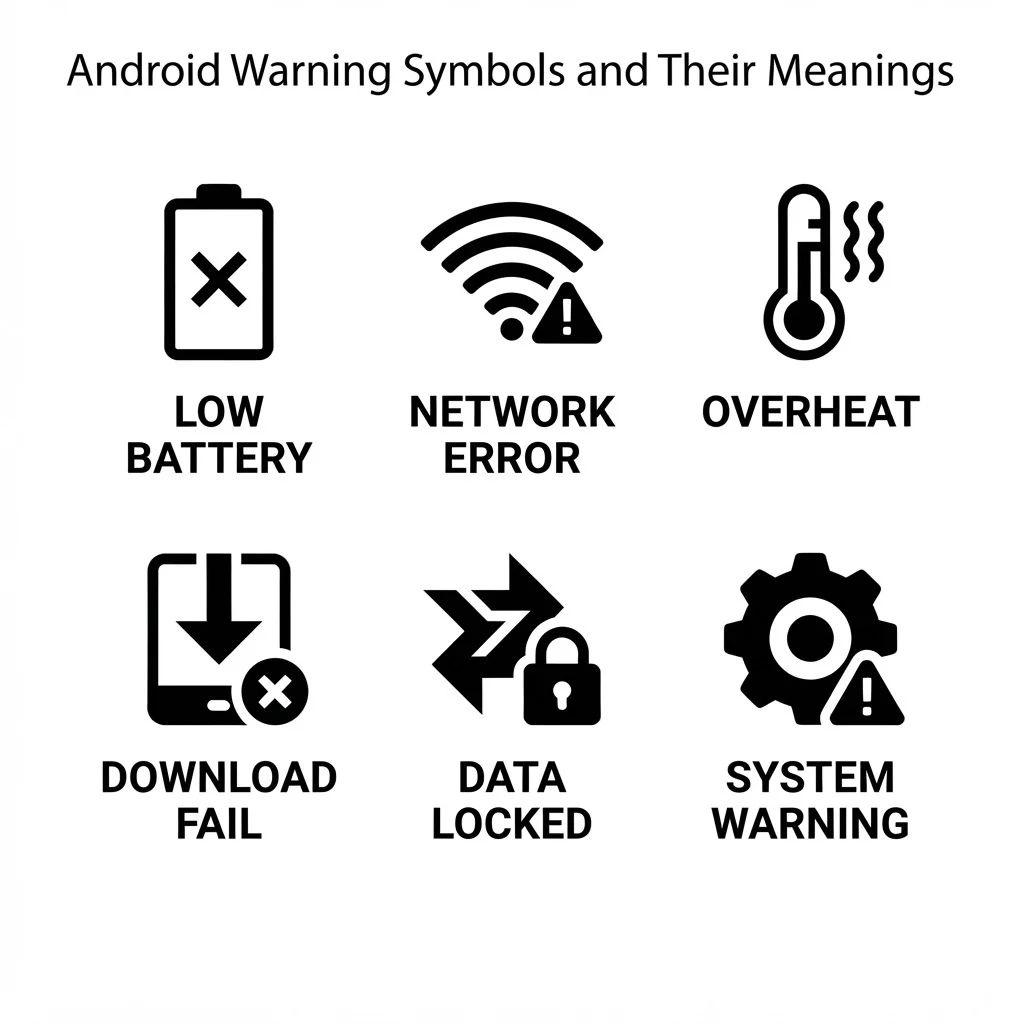
Warning symbols deserve special attention because they may indicate a connectivity problem, system issue, or feature that needs your attention.
Not every warning means your phone is damaged. Some simply tell you that a service is unavailable or requires a setting change.
Triangle With an Exclamation Mark
A triangle containing an exclamation mark is a general warning symbol.
Its meaning depends on where it appears.
It may indicate a network problem, application warning, system notification, or another condition requiring attention.
Check the notification panel to identify the application or system feature responsible for displaying it.
Do not assume that every triangle warning represents a virus or serious phone damage.
Wi-Fi Symbol With an Exclamation Mark
A Wi-Fi icon with an exclamation mark commonly indicates that your phone is connected to a wireless network but cannot access the internet.
Possible causes include:
- Your router has lost its internet connection.
- Your internet subscription has expired.
- The network requires a login.
- Your router needs restarting.
- A temporary service interruption has occurred.
- The network has restricted internet access.
To troubleshoot the problem, try opening another website, restarting your router, or reconnecting to Wi-Fi.
If other devices also cannot access the internet, contact your internet provider.
Crossed-Out SIM Card Symbol
A crossed-out SIM symbol generally indicates that your phone cannot detect or use the SIM card correctly.
Possible reasons include:
- The SIM card is missing.
- The SIM card is inserted incorrectly.
- The card is damaged.
- Your carrier has deactivated the SIM.
- Your phone has a temporary SIM detection problem.
Turn off your device if necessary, check the SIM tray, and reinsert the card carefully.
If the symbol remains, contact your mobile provider or visit an authorized service center.
Battery Warning Symbol
A battery warning may appear when your phone has very little power or detects a charging-related issue.
Depending on the device, it may also relate to battery temperature or charging protection.
Disconnect the charger if your phone becomes unusually hot, and follow the manufacturer’s safety instructions.
If the warning continues despite normal charging conditions, have the battery and charging hardware checked.
No Service Symbol
The No Service symbol indicates that your phone cannot connect to an available cellular network.
It may appear because of weak coverage, a carrier outage, an inactive SIM, or incorrect network settings.
Try these steps:
- Move to an area with better reception.
- Check whether Airplane Mode is disabled.
- Restart your phone.
- Check your SIM card.
- Contact your mobile carrier if the problem continues.
Android System Error Symbol
An Android system error indicator can appear when a system feature or application experiences a problem.
The symbol itself does not identify the exact cause.
Open the notification panel and read the accompanying message. It may explain whether an application needs an update, storage space is limited, or a system service requires attention.
Avoid factory resetting your phone simply because you see an unfamiliar warning icon.
Android Privacy Symbols and Their Meanings
Android includes privacy indicators that help you understand when applications access sensitive features.
These indicators are especially important because your camera, microphone, and location can reveal personal information.
On Android 12 and newer versions, camera and microphone access indicators help notify users when supported applications use these features. Their appearance and behavior can vary across manufacturers.
Green Camera Indicator
A green camera indicator can appear near the top of your screen when an application accesses your camera.
For example, you may see it when:
- Taking photographs.
- Recording videos.
- Joining a video call.
- Using a camera-based application.
- Scanning a QR code.
If the indicator appears unexpectedly, check which application is using your camera.
Green Microphone Indicator
The microphone privacy indicator appears when an application accesses your microphone.
Voice calls, voice messages, audio recording, and voice assistants may activate this indicator.
It does not automatically mean someone is spying on you. Many ordinary applications require microphone access to perform their intended functions.
However, you should investigate any unexpected access.
Location Privacy Indicator
Some Android devices display an indicator when an application accesses your location.
This helps you recognize when an app uses location information for navigation, weather updates, or another service.
You can review location permissions to see which applications have access.
How to Check Which App Is Using Your Camera or Microphone
Follow these steps to identify the application responsible for a privacy indicator:
- Look for the privacy indicator near the top of your screen.
- Open Quick Settings by swiping down from the top.
- Tap the camera or microphone privacy indicator when supported.
- Review the application name shown by Android.
- Open Settings if you want to manage its permissions.
- Remove unnecessary camera or microphone access.
You can also open Settings and search for Privacy Dashboard or Permission Manager.
The Privacy Dashboard provides information about recent access to supported sensitive permissions.
How to Turn Off Camera and Microphone Access
Android offers privacy controls that allow you to disable camera or microphone access system-wide on supported devices.
To manage these controls:
- Swipe down to open Quick Settings.
- Expand the panel if necessary.
- Find Camera Access or Microphone Access.
- Turn off the relevant control.
- Turn it back on when you need the feature.
Remember that disabling these controls can prevent legitimate applications from working properly.
Android Navigation Symbols and Their Meanings
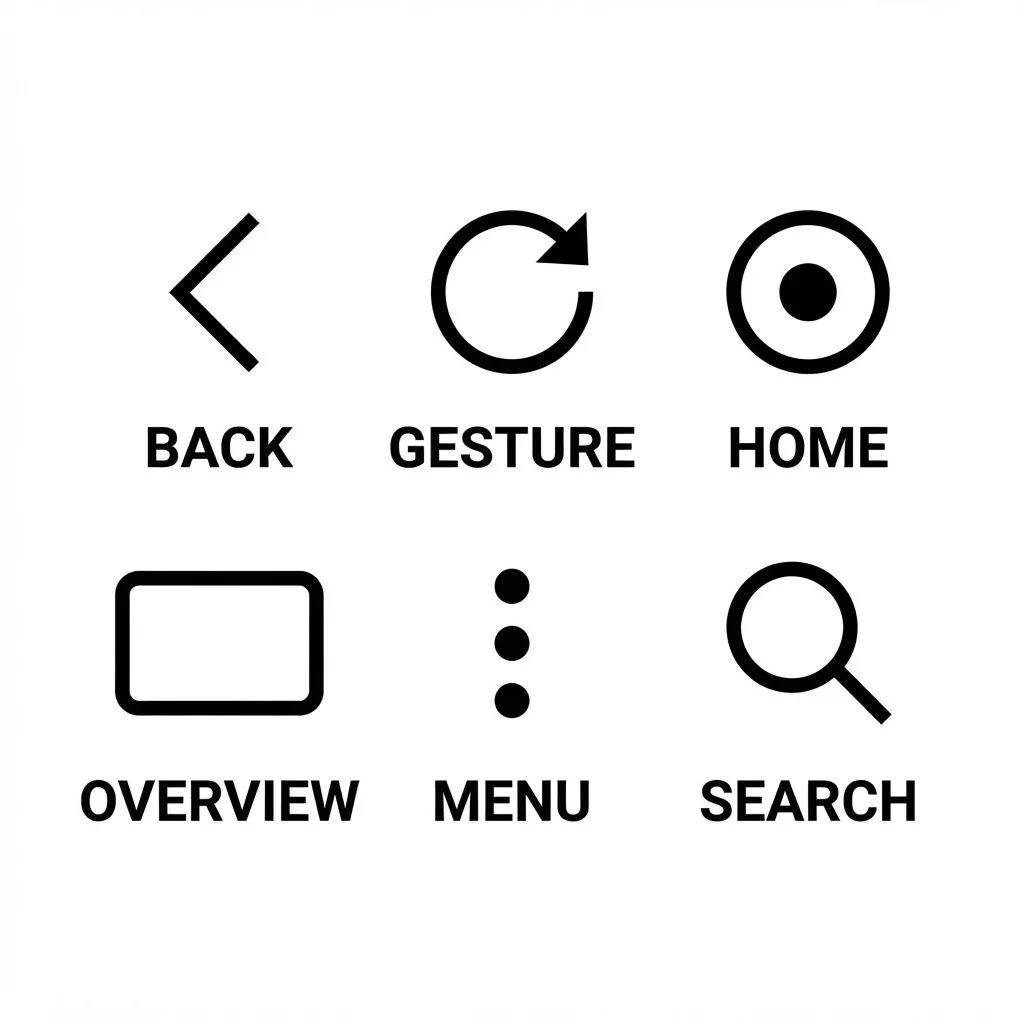
Navigation symbols appear near the bottom of your phone screen. They help you move between applications, return to the home screen, and access previously opened pages.
Android commonly supports three-button navigation and gesture navigation.
Back Symbol
The Back symbol usually looks like a left-pointing arrow or triangle.
It takes you to the previous screen or closes certain menus and interface elements.
For example, if you open a settings page, pressing Back generally returns you to the previous settings screen.
Home Symbol
The Home symbol commonly appears as a circle in traditional three-button navigation.
It takes you back to your main home screen without necessarily closing your open applications.
Some devices replace the circle with a horizontal gesture indicator.
Recent Apps Symbol
The Recent Apps symbol may look like a square, three vertical lines, or another similar design.
It opens the application overview, allowing you to switch between recently used apps.
You can select an application to return to it or dismiss supported app previews.
Gesture Navigation Bar
The gesture navigation bar usually appears as a short horizontal line near the bottom of the screen.
Instead of tapping separate navigation buttons, you use gestures.
Common Android gestures include:
- Swipe upward to return to the Home screen.
- Swipe upward and hold to open Recent Apps.
- Swipe inward from the left or right edge to go Back.
The exact gesture behavior depends on your phone’s navigation settings.
Android Quick Settings Symbols and Their Meanings
Quick Settings provides shortcuts to frequently used Android features.
You can usually open it by swiping down from the top of your screen. On many devices, swiping down again displays additional controls.
| Quick Settings symbol | Meaning |
| Wi-Fi | Manage wireless connections |
| Bluetooth | Manage Bluetooth |
| Airplane | Enable Airplane Mode |
| Flashlight | Turn the torch on or off |
| Auto-Rotate | Control screen orientation |
| Do Not Disturb | Manage interruptions |
| Battery Saver | Reduce battery consumption |
| Mobile Data | Manage cellular internet |
| Hotspot | Share mobile internet |
| Location | Manage location services |
| Screen Record | Record your phone screen |
| Cast | Share content with another display |
| Dark Theme | Enable a dark interface |
| QR Scanner | Scan QR codes |
Flashlight Symbol
The flashlight symbol looks like a small torch.
Tap it to turn your phone’s LED flashlight on or off.
It is useful when you need extra light in a dark room or outside at night.
Auto-Rotate Symbol
The Auto-Rotate symbol controls whether your phone changes screen orientation when you turn it.
When enabled, supported applications can switch between portrait and landscape layouts.
When disabled, the screen generally stays in its current orientation.
Do Not Disturb Symbol
The Do Not Disturb symbol commonly appears as a crescent moon or a circle with a horizontal line.
This feature helps silence calls, notifications, and other interruptions according to your selected preferences.
You can create exceptions for important contacts, alarms, and other notifications.
Screen Recording Symbol
The screen recording symbol indicates that your phone is capturing activity on its display.
You can use this feature to create tutorials, demonstrate application functions, or record troubleshooting steps.
Android generally displays a recording indicator while the feature is active.
Tap the recording notification or supported screen control to stop recording.
Cast Symbol
The Cast symbol commonly looks like a screen with wireless signal waves.
It allows compatible devices and applications to send supported content to another display.
For example, you can cast videos to a compatible television or share your phone screen.
Samsung Galaxy Symbols and Their Meanings
Samsung Galaxy smartphones use Android with Samsung’s One UI interface.
This means some Samsung symbols look different from the icons found on Google Pixel, Motorola, and other Android devices.
Samsung also includes additional indicators for Galaxy-specific features.
Samsung S Pen Symbols
Supported Galaxy devices use S Pen indicators to communicate stylus activity.
Depending on the model, you may see symbols showing that the S Pen is connected, disconnected, or low on power.
If the S Pen disconnected indicator appears, check whether the stylus is properly attached to its storage area.
Samsung Secure Folder Symbol
The Secure Folder symbol identifies Samsung’s protected storage feature.
Secure Folder provides a separate protected space for supported applications and personal files.
Users can store selected information there rather than keeping everything in their regular phone storage.
Samsung Smart View Symbol
Smart View is Samsung’s screen-sharing feature.
It allows compatible Galaxy devices to display supported content on televisions and other screens.
You may see a related indicator when screen mirroring is active.
Samsung Wi-Fi Calling Symbol
Samsung devices may display a phone and Wi-Fi indicator when Wi-Fi Calling is available or active.
This feature allows supported mobile calls to use a Wi-Fi connection.
Your carrier must support the feature, and it may require activation through your phone settings.
Samsung Data Saver Symbol
The Data Saver indicator tells you that Samsung’s data-saving feature is active.
It helps reduce mobile data consumption by restricting certain background activities.
You can review its settings under Connections and Data Usage.
Samsung Enhanced Processing Symbol
Enhanced Processing is a Galaxy-specific performance feature available on supported devices.
It can affect processing behavior and power consumption.
If you see its indicator, check your device’s battery and performance settings for more information.
Samsung Quick Share Symbol
Quick Share allows supported Samsung and Android devices to share files with compatible nearby devices.
You can use it to send photographs, videos, and documents without relying on traditional messaging attachments.
Samsung Multi Control Symbol
Multi Control is a Samsung ecosystem feature that allows supported Galaxy devices to work together.
Depending on compatibility and setup, you may use a connected keyboard and mouse to control multiple devices.
Samsung Call and Text on Other Devices Symbol
This feature allows supported Galaxy devices to share calling and messaging functions.
For example, you may be able to access phone calls or messages through another compatible Samsung device.
Availability depends on the device, software version, and account configuration.
Google Pixel and Motorola Android Symbols
Google Pixel and Motorola smartphones use their own software interfaces and may display additional indicators.
Although many basic Android symbols remain similar, certain icons and settings are manufacturer-specific.
Google Pixel Status Bar Icons
Google Pixel phones use Google’s Android interface.
Common indicators include:
- Wi-Fi and cellular signal.
- Battery and charging status.
- Bluetooth connections.
- Location activity.
- Camera and microphone privacy.
- VPN activity.
- Alarm and Do Not Disturb.
- Screen recording.
Pixel phones may also display indicators associated with Google’s services and supported features.
Google Pixel Privacy and Battery Indicators
Pixel devices provide privacy controls that help users manage sensitive permissions.
You can review camera, microphone, and location access through the Privacy Dashboard and related settings.
Battery indicators may also change when Battery Saver, charging protection, or another supported power feature becomes active.
Motorola Status Bar Symbols
Motorola phones use Android features with Motorola-specific interface options.
Motorola documentation identifies several additional status and notification indicators, including:
- Email and calendar synchronization.
- Upload completed.
- Download completed.
- Google backup in progress.
- Google backup completed.
- New voicemail.
- Focus Mode.
- Screen recording.
- Upcoming calendar events.
- Battery Saver.
- Vibration mode.
Motorola Backup and Synchronization Icons
Motorola phones may display circular arrows or cloud-related symbols when synchronization and backup activities take place.
These indicators help you recognize when your phone is updating information or protecting supported data.
A backup-in-progress symbol does not guarantee that the backup has finished successfully. Check the relevant Google service to verify its status.
Motorola USB and Connectivity Symbols
Motorola devices may display USB-related indicators when connected to a computer or another compatible accessory.
Depending on your connection settings, the device may support charging, file transfer, or USB tethering.
Check your USB preferences to identify the active connection mode.
Why Do New Symbols Suddenly Appear on Android?
Seeing a new icon does not necessarily mean something is wrong with your phone.
Android displays indicators when certain features become active, applications request permissions, or system activities begin.
Here are common reasons unfamiliar symbols suddenly appear.
A New Application Has Been Installed
New applications may display their own notification icons or request permissions for particular features.
For example, a navigation app may request location access, while a voice recorder may need microphone permission.
An Application Has Requested Permission
When an application accesses your camera, microphone, or location, Android may display a privacy indicator.
This helps you recognize sensitive activity.
A System Feature Has Been Activated
Turning on Bluetooth, Hotspot, Airplane Mode, Battery Saver, or Do Not Disturb can introduce new status indicators.
These symbols usually remain until you disable the related feature.
Your Phone Has Received a Software Update
Software updates can introduce new icons, change existing designs, or modify how certain indicators appear.
A symbol that looks unfamiliar after an update may simply reflect a redesigned interface.
Your Network Connection Has Changed
Your phone may switch between 3G, 4G, LTE, and 5G depending on available network coverage.
It may also display roaming or no-service indicators when your cellular connection changes.
A Scheduled Alarm or Reminder Has Become Active
An alarm, calendar reminder, or scheduled notification can introduce a new indicator.
Check your Clock and Calendar applications if you do not recognize the symbol.
Background Synchronization or Backup Has Started
Applications may synchronize contacts, emails, calendars, and files in the background.
Some phones display temporary indicators during these activities.
An Application Has Started Recording or Downloading
A screen recording, file download, or upload can introduce a temporary notification or status indicator.
Check your notification panel to understand what is happening.
How to Remove or Hide Symbols From the Android Status Bar
Some Android symbols disappear automatically when their related activity ends. Others remain visible until you disable the associated feature.
The correct method depends on the icon and your phone manufacturer.
| Symbol | How to manage it |
| Bluetooth | Turn off Bluetooth |
| Location | Change location settings or app permissions |
| VPN key | Disconnect the active VPN |
| Airplane Mode | Disable Airplane Mode |
| Hotspot | Turn off Mobile Hotspot |
| Alarm | Disable or delete the scheduled alarm |
| Do Not Disturb | Turn off Do Not Disturb |
| Battery Saver | Disable Battery Saver |
| Screen recording | Stop the active recording |
| App notification | Change the app’s notification settings |
| Microphone indicator | Stop microphone use or review app permissions |
| Camera indicator | Stop camera use or review app permissions |
Turn Off Unnecessary Features
If you recognize an icon and do not need the related feature, open Quick Settings.
For example, you can turn off Bluetooth, Hotspot, Airplane Mode, or Do Not Disturb through the available controls.
Remember that disabling a feature may affect applications that depend on it.
Manage Application Notifications
If an unwanted symbol comes from an application notification, you can manage it through Android settings.
Follow these general steps:
- Open Settings.
- Select Notifications.
- Open App Notifications.
- Find the application responsible.
- Change its notification permissions or available notification categories.
Menu names can differ between Android versions and manufacturers.
Manage Camera and Microphone Permissions
If you want to stop an application from accessing your camera or microphone, review its permissions.
- Open Settings.
- Select Privacy or Security and Privacy.
- Open Permission Manager.
- Choose Camera or Microphone.
- Select the application.
- Change its permission to the appropriate option.
Only remove permissions that the application does not need for its intended functions.
Hide Status Bar Icons on Samsung Phones
Some Samsung devices provide additional controls for managing status bar indicators.
Depending on your model and One UI version, you may find options under Notifications and Status Bar settings.
Certain Galaxy devices also support Good Lock and its QuickStar module, which provides additional interface customization.
However, these options are not available on every Samsung phone or in every region.
Understand the Difference Between Hiding and Disabling an Icon
Hiding an icon does not always disable the feature behind it.
For example, removing a Bluetooth indicator from the status bar does not necessarily turn Bluetooth off.
Likewise, hiding an app notification does not automatically stop the application from running.
If your goal is to stop an activity, change the relevant feature or permission instead of simply hiding its indicator.
How to Identify an Unknown Symbol on Your Android Phone
Sometimes, you may encounter a symbol that does not appear in a general Android icon guide.
You can usually identify it by checking the notification panel and relevant settings.
Step 1: Open the Notification Panel
Swipe down from the top of your screen.
Look for a notification associated with the unfamiliar symbol.
The notification may display the name of the application or system service responsible.
Step 2: Expand Quick Settings
Swipe down again if necessary.
Review the active Quick Settings controls to see whether the symbol relates to Wi-Fi, Bluetooth, Location, Hotspot, or another phone feature.
Step 3: Check Your Phone Settings
Open Settings and review relevant sections, including:
- Network and Internet.
- Connections.
- Battery.
- Privacy.
- Apps.
- Notifications.
- Security.
You can also use the Settings search bar to find a particular feature.
Step 4: Identify the Responsible Application
If the symbol appears beside a notification, press and hold the notification when supported.
Android may show the application name and provide access to its notification settings.
Step 5: Check Your Manufacturer’s Support Guide
If you use a Samsung, Motorola, Google Pixel, Xiaomi, or OnePlus phone, consult its official support documentation.
Manufacturer guides can help identify symbols that only appear on particular devices.
Step 6: Check Whether the Symbol Is Temporary
Some indicators appear only while an activity is taking place.
For example, a download symbol may disappear after a file finishes downloading.
A screen recording indicator should disappear after recording stops.
If an icon remains visible, check whether the related feature is still active.
Frequently Asked Questions About Android Symbols
What Do the Symbols at the Top of My Android Phone Mean?
The symbols at the top of your Android phone are status indicators and notification icons. They provide information about Wi-Fi, cellular signals, battery power, Bluetooth, location, alarms, and application activity. Their appearance depends on your device and Android version.
What Does the Key Symbol Mean on Android?
The key symbol commonly indicates that a VPN connection is active. A VPN creates an encrypted connection between your device and a VPN service. Check your network settings if you want to identify the application responsible for the symbol.
What Does the Green Dot Mean on Android?
The green privacy indicator can appear when an application accesses your camera or microphone. You can tap the indicator or open your privacy controls, when supported, to check which application is using these features.
What Does the Circle With a Plus Sign Mean on Android?
A circle with a plus sign can represent different features depending on the phone and where it appears. Some users may confuse it with Data Saver or another system indicator. Check the notification panel or your manufacturer’s icon guide before identifying it.
What Does the Crescent Moon Symbol Mean on Android?
The crescent moon usually indicates that Do Not Disturb mode is active. This feature helps silence calls and notifications according to your selected preferences. You can manage it through Quick Settings.
What Does a Triangle With an Exclamation Mark Mean on Android?
A triangle with an exclamation mark is a general warning indicator. Its meaning depends on the application or system feature displaying it. Open the notification panel to find the accompanying message and understand what requires attention.
What Does the Wi-Fi Symbol With an Exclamation Mark Mean?
This symbol commonly indicates that your phone is connected to a wireless network but cannot access the internet. Restart your router, check your internet service, or reconnect to the network to troubleshoot the problem.
What Does the R Symbol Mean on My Android Phone?
The letter R commonly indicates cellular roaming. It means your phone is using a network outside its normal home network. Roaming charges may apply depending on your carrier and mobile plan.
Why Is There a Small Key Symbol at the Top of My Phone?
A small key generally indicates an active VPN connection. Open your VPN settings to see which service is connected. Some security and filtering applications may also use VPN connections.
Why Does My Android Phone Show a Microphone Symbol?
A microphone indicator appears when an application accesses your phone’s microphone. Voice calls, recording applications, voice assistants, and messaging services may activate it. Check your privacy controls if you do not recognize the activity.
How Can I Remove Unwanted Symbols From My Android Phone?
The method depends on the symbol. You can turn off certain features through Quick Settings, change application permissions, or adjust notification settings. Some essential system indicators cannot be removed without changing the related feature.
Why Do Android Symbols Look Different on Samsung and Other Phones?
Android manufacturers customize their interfaces, which changes the appearance of certain icons. Samsung uses One UI, while Google Pixel and Motorola phones use their own software designs. Android versions and installed applications can also affect which symbols appear.
Conclusion
Android symbols make it easier to understand what your smartphone is doing. From Wi-Fi and mobile network indicators to battery warnings, notification icons, privacy alerts, and navigation controls, each symbol communicates useful information.
Learning Android symbols and their meanings helps you identify unfamiliar icons, manage phone settings, understand notifications, and recognize potential problems.
Remember that not every Android phone displays the same symbols. Samsung Galaxy, Google Pixel, Motorola, and other devices may use different designs and manufacturer-specific indicators.
When you encounter an unfamiliar icon, check your notification panel and phone settings before assuming something is wrong. Understanding these small symbols can make your Android experience simpler, safer, and more convenient.

Adam Sullivan is a dedicated writer who enjoys transforming everyday topics into engaging and informative content. His writing focuses on making complex ideas simple, practical and enjoyable for readers of all backgrounds. Adam is also the fictional author of The Lantern Beyond Autumn Hills and Where the Morning Horizon Waits. Outside of writing, he enjoys photography, traveling and discovering inspiration through new experiences. He believes great content should be both helpful and easy to connect with.
 Dylan Anderson