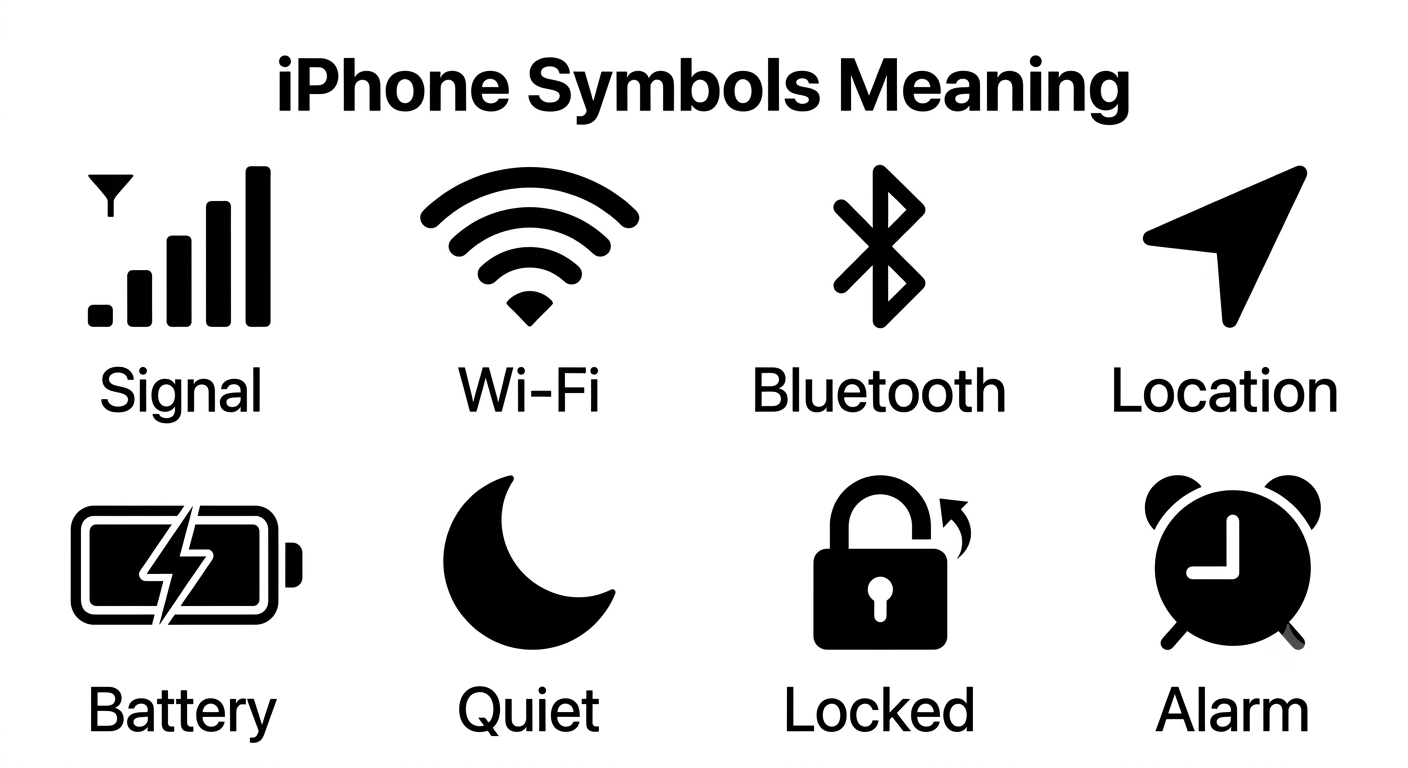
If you’ve ever looked at your iPhone and wondered what a tiny icon actually means, you’re not alone.
I remember seeing unfamiliar symbols after an iOS update and wondering if something was wrong with my phone.
The truth is, these small icons can tell you a lot about your device’s status, privacy, battery, and connections. Once you understand them, using your iPhone becomes much easier.
This guide explains iphone symbols meaning in simple language so you can quickly recognize what each icon is telling you.
Quick Answer: What Do iPhone Symbols Mean?
The most common iPhone symbols are Wi-Fi, cellular signal, battery, Bluetooth, and the orange and green privacy indicators. These icons show your phone’s connection, battery level, privacy status, and active features. Other symbols may appear depending on apps, Focus modes, accessibility settings, or system activities.
What Are iPhone Symbols Meaning?
The term iphone symbols meaning refers to the icons and indicators displayed throughout iOS. These symbols help you understand what’s happening on your device without opening Settings.
Some icons show your network or battery status, while others indicate that a feature such as Airplane Mode, Focus Mode, Bluetooth, or Location Services is active.
Not every symbol has the same meaning in every situation. Some icons only appear during certain activities, after software updates, or when specific apps are running. Apple occasionally introduces new symbols with major iOS releases, so you may notice changes over time.
Understanding these icons helps you troubleshoot problems, protect your privacy, and use your iPhone more efficiently.
iPhone Symbols Meaning Comparison Table
| Symbol | Main Meaning | Best Use |
| 📶 Cellular Signal | Mobile network strength | Check network coverage |
| 📡 Wi-Fi | Connected to wireless internet | Internet connection |
| 🔋 Battery | Remaining battery level | Power management |
| ⚡ Charging | Battery is charging | Charging status |
| ✈️ Airplane Mode | Wireless radios disabled | Travel and troubleshooting |
| 🔵 Bluetooth | Bluetooth is enabled | Wireless accessories |
| 🌙 Focus/Do Not Disturb | Notifications limited | Reduce distractions |
| 📍 Location Services | App is using location | Privacy awareness |
| 🟠 Orange Dot | Microphone in use | Privacy monitoring |
| 🟢 Green Dot | Camera or camera with microphone active | Privacy monitoring |
| 🔒 Lock Rotation | Screen rotation locked | Viewing control |
| 🔄 Sync/Activity | Background activity | Data syncing |
Top 12 iPhone Symbols Meaning and Their Meanings
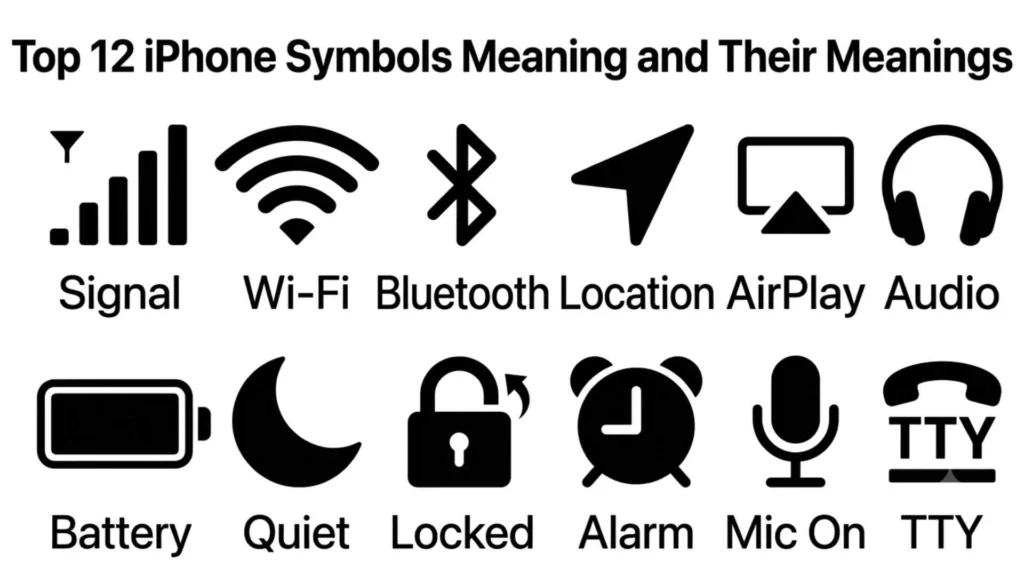
Cellular Signal: Your Mobile Network Status
The signal bars show how strong your cellular connection is. More bars usually mean better call quality and faster mobile data speeds. If the signal disappears, your iPhone may have trouble making calls or accessing the internet without Wi-Fi.
The number of bars changes as you move between locations or network coverage areas.
Best for: Monitoring network coverage, travel, troubleshooting calls, checking mobile data.
Wi-Fi Symbol: Internet Connection
The Wi-Fi icon appears when your iPhone is connected to a wireless network. A full icon generally indicates a stronger wireless signal, which can improve browsing, streaming, and downloads.
If the icon disappears, your phone may switch to cellular data if it’s available.
Best for: Home internet, office networks, public Wi-Fi, reducing mobile data use.
Battery Symbol: Remaining Power
The battery icon lets you quickly see how much power remains. When Low Power Mode is enabled, the battery icon turns yellow. During charging, a lightning bolt appears inside the battery.
Keeping an eye on this symbol helps prevent unexpected shutdowns during the day.
Best for: Daily battery monitoring, charging habits, travel planning, power management.
Charging Symbol: Power Connected
A lightning bolt inside the battery icon means your iPhone is charging. If you’re using MagSafe or wireless charging, the charging animation confirms that power is flowing correctly.
If the symbol doesn’t appear after connecting a charger, it may indicate a cable, adapter, or charging port issue.
Best for: Charging confirmation, troubleshooting charging problems, battery maintenance.
Airplane Mode: Wireless Connections Disabled
The airplane icon appears when Airplane Mode is enabled. Cellular service, Wi-Fi, and Bluetooth may be disabled depending on your settings, although Wi-Fi and Bluetooth can be turned back on manually afterward.
Many people also use Airplane Mode to save battery or troubleshoot network issues.
Best for: Air travel, battery saving, network troubleshooting, minimizing wireless signals.
Bluetooth Symbol: Wireless Devices Connected
The Bluetooth icon indicates Bluetooth is enabled. It allows your iPhone to connect with wireless headphones, speakers, watches, keyboards, and vehicles.
The symbol doesn’t always mean a device is actively connected—it simply shows Bluetooth is available or in use.
Best for: AirPods, wireless audio, Apple Watch, car connectivity, accessories.
Focus Mode Symbol: Fewer Distractions
A moon or custom Focus icon appears when Focus Mode is active. Depending on your settings, calls and notifications may be limited while you’re working, sleeping, driving, or studying.
Different Focus modes can display unique icons, making it easy to know which profile is currently enabled.
Best for: Productivity, sleep schedules, driving, studying, reducing interruptions.
Location Services Symbol: GPS Activity
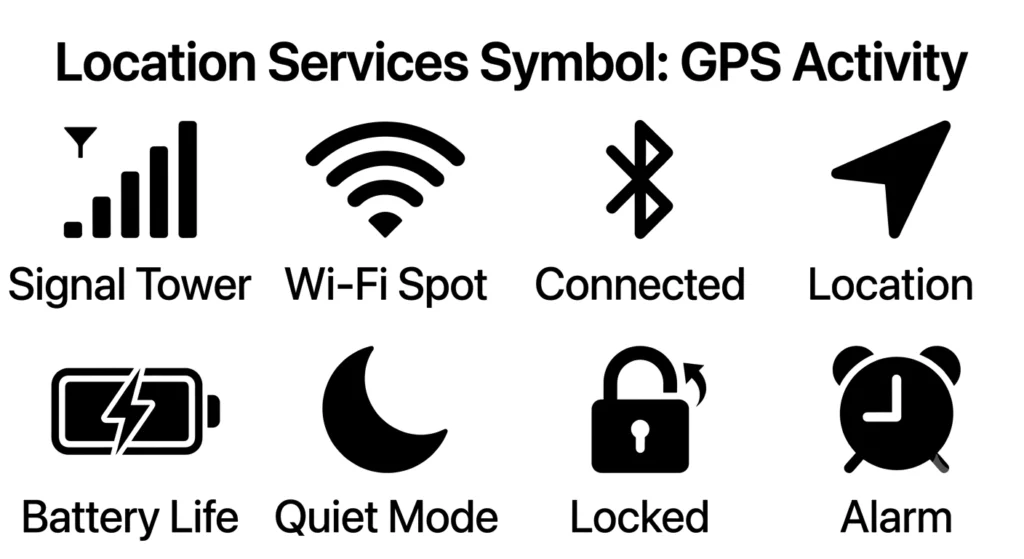
The location arrow indicates an app is using or has recently used your location. Navigation, weather, fitness, and delivery apps commonly display this icon.
Different arrow styles may indicate recent access, active access, or geofencing.
This symbol helps you stay aware of which apps can access your location.
Best for: Maps, travel, weather apps, privacy monitoring, navigation.
Orange Dot: Microphone Privacy Indicator
The orange dot is one of Apple’s most useful privacy features. It appears whenever an app is actively using your microphone.
If you notice the orange dot unexpectedly, you can review microphone permissions in your Privacy settings.
This indicator helps users identify when voice recording is taking place.
Best for: Privacy awareness, app permissions, security monitoring, microphone access.
Green Dot: Camera Privacy Indicator
The green dot appears whenever an app is using your camera. If both the camera and microphone are active, you’ll also see the green indicator.
This privacy feature helps prevent apps from secretly accessing your camera without your knowledge.
Best for: Video calls, photography apps, privacy protection, security awareness.
Rotation Lock: Screen Orientation Fixed
The padlock with a circular arrow means your screen rotation is locked. Your display stays in portrait mode even if you rotate the phone.
Many people use this while reading, lying down, or watching videos in specific positions.
Best for: Reading, browsing, accessibility, preventing accidental rotation.
Sync or Activity Indicator: Background Processes
A spinning activity symbol indicates your iPhone is working in the background. It may be syncing iCloud, restoring data, downloading files, or updating apps.
The icon usually disappears automatically once the task finishes.
Best for: Software updates, iCloud sync, backups, downloads, troubleshooting.
Best iPhone Symbols for Privacy Awareness
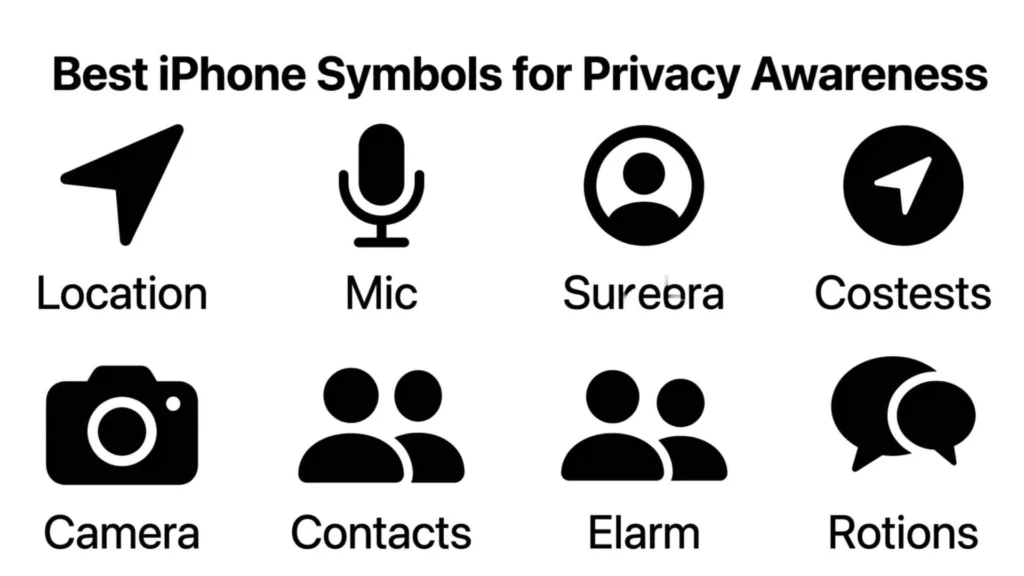
Some iPhone symbols are especially important because they protect your personal information.
The most useful privacy indicators include:
- 🟠 Orange Dot (Microphone)
- 🟢 Green Dot (Camera)
- 📍 Location Services
- 🔒 Lock Screen Security
- 🌙 Focus Mode for limiting interruptions
These symbols help you quickly identify when your device is accessing sensitive features.
Best iPhone Symbols for Design and User Experience
Apple’s icon system is intentionally simple. Most symbols are designed to be recognized within a second.
Good interface symbols usually have these qualities:
- Easy to recognize
- Minimal visual detail
- Consistent across apps
- Clear meaning
- Simple enough for small screens
This design philosophy is one reason iPhone icons remain intuitive for millions of users.
Best iPhone Symbols for Everyday Use
Some symbols become part of your daily routine because they help you manage your device more effectively.
The most useful everyday icons include:
- Battery for monitoring power
- Wi-Fi for internet connectivity
- Cellular signal for calls
- Bluetooth for accessories
- Focus Mode for productivity
- Privacy indicators for security
Learning these symbols can reduce confusion and make troubleshooting much easier.
Before Interpreting Privacy and System Symbols
Some iPhone symbols relate directly to your privacy or device security. While Apple’s indicators are standardized, their appearance may vary slightly depending on the iPhone model or iOS version.
New iOS releases sometimes introduce additional icons or change existing designs. If you’re unsure about a symbol, checking Apple’s official documentation or the latest iOS release notes can provide clarification.
Always be cautious before changing system settings if you don’t understand what a particular symbol means.
How to Understand the Right iPhone Symbol
If you encounter an unfamiliar icon, consider these questions:
- Is it showing device status?
- Is it related to privacy?
- Is an app currently running?
- Did it appear after an iOS update?
- Does it disappear after restarting or closing an app?
You can also swipe into Control Center or open Settings to see which feature is currently active. Most symbols are designed to provide quick visual information rather than detailed explanations.
FAQs About iPhone Symbols Meaning
What is the most important iPhone symbol?
The battery icon is one of the most important because it shows your remaining power. The Wi-Fi and cellular signal icons are also essential since they indicate your connection status.
What do the orange and green dots mean?
The orange dot means an app is using your microphone. The green dot indicates your camera is active or that both the camera and microphone are currently being used.
Why do new symbols appear after updating iOS?
Apple occasionally adds new features and privacy indicators with software updates. New Focus modes, accessibility tools, or system functions may introduce additional icons.
What is the airplane symbol on iPhone?
The airplane icon indicates Airplane Mode is enabled. This disables cellular communication and may temporarily disable other wireless connections until you turn them back on.
Why does the location arrow keep appearing?
The location symbol appears when an app accesses your GPS location. Navigation, weather, delivery, and fitness apps commonly trigger this indicator.
What is a simple symbol to monitor every day?
The battery icon is probably the simplest and most useful symbol to watch because it helps you avoid running out of power unexpectedly.
Why is my Bluetooth icon visible even when I’m not using headphones?
The icon often means Bluetooth is enabled rather than actively connected. Your iPhone keeps Bluetooth available for accessories like watches, keyboards, and nearby devices.
Can iPhone symbols change?
Yes. Apple occasionally updates icons, introduces new privacy indicators, and redesigns interface elements with major iOS releases.
Final Thoughts
Understanding iphone symbols meaning makes your iPhone easier to use and helps you stay informed about your device’s connections, privacy, and system status.
From battery and Wi-Fi icons to the orange and green privacy indicators, every symbol has a purpose. Once you recognize what these icons mean, you’ll spend less time guessing and more time confidently using your iPhone every day.

Dylan Anderson is a writer who enjoys turning complex topics into simple, engaging content that readers can actually use. His work focuses on clear explanations, practical insights and storytelling that feels natural and relatable. He is also the fictional author of The Quiet Compass of Ashford and Where the Cedar Lantern Glows. When he’s away from his keyboard, Dylan enjoys hiking, reading, and discovering inspiration in everyday life. He believes great writing should be informative, easy to understand and enjoyable from beginning to end.
 Adam Sullivan