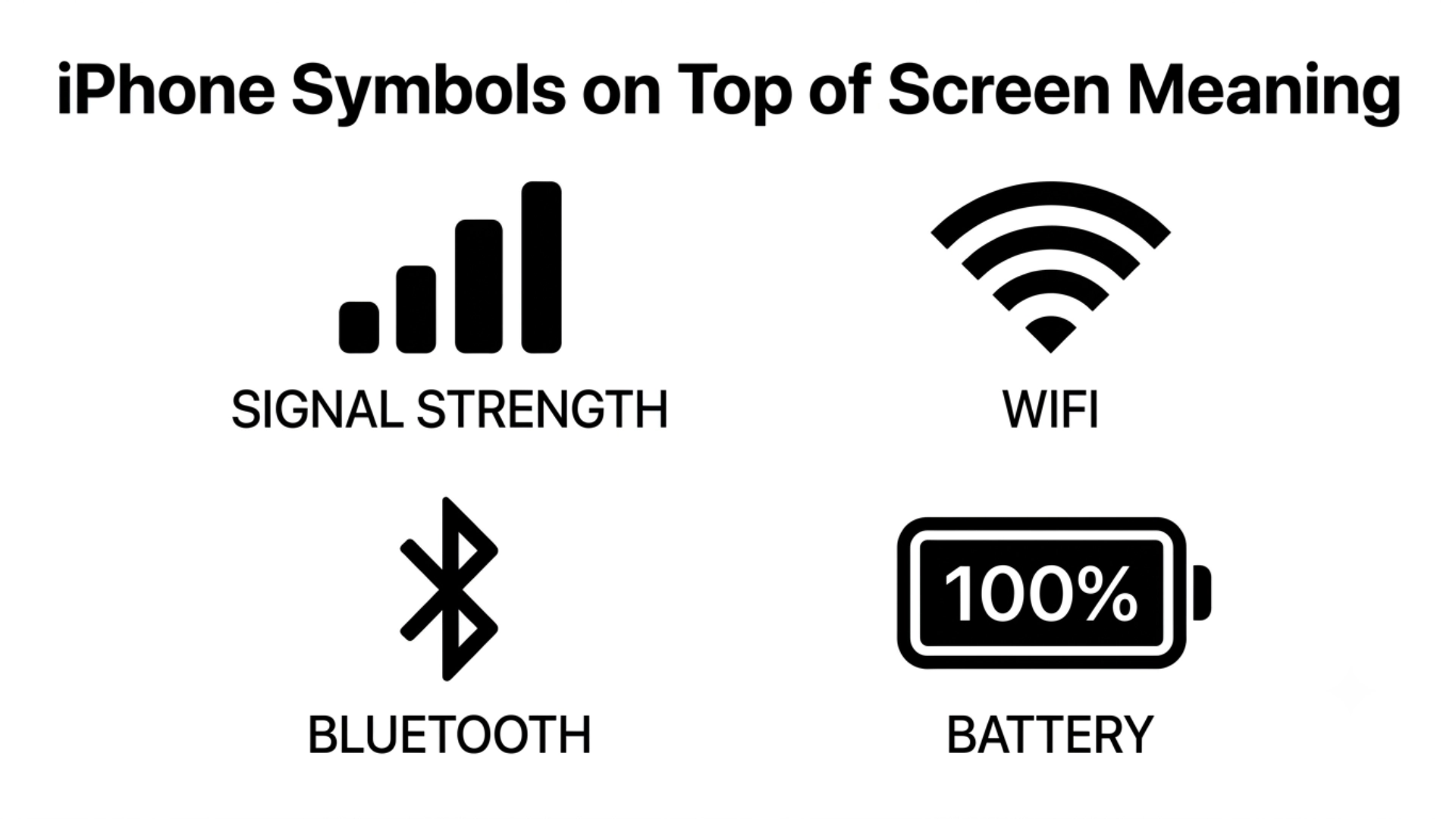
Have you ever looked at the top of your iPhone screen and wondered what one of those tiny icons actually means? I know how confusing it can be when a new symbol suddenly appears, especially after an iOS update. The good news is that most iPhone status icons have simple meanings once you know what to look for.
From battery and Wi-Fi indicators to privacy dots, Focus mode, and Dynamic Island notifications, every symbol is designed to keep you informed about your iPhone’s status. Learning what these icons mean can help you solve common issues faster, protect your privacy, and make the most of your device’s features. You’re using an iPhone 11, iPhone 16, or another model, understanding these symbols makes everyday use much easier.
In this guide, I’ll explain the most common iPhone symbols on top of screen meaning in clear, everyday language so you can quickly understand what your phone is trying to tell you and know when you need to take action.
What Do the iPhone Symbols on Top of the Screen Mean? (Quick answer)
The symbols at the top of your iPhone screen are called status icons. They show important information about your device, such as your cellular signal, Wi-Fi connection, battery level, location services, Focus mode, microphone or camera usage, Bluetooth status, and more.
The most important symbol to recognize is the battery icon, since it tells you how much power remains and whether your iPhone is charging. Together, these icons help you understand your phone’s current status at a glance.
What Are iPhone Symbols on Top of Screen Meaning?

The icons at the top of your iPhone display are designed to communicate your phone’s current status without requiring you to open Settings.
Each symbol has a specific purpose. Some show the condition of your network, while others let you know when certain features or apps are active.
It’s also worth knowing that icon placement may vary depending on your iPhone model. Devices with Face ID use the Dynamic Island or notch, so some icons appear only after you swipe down to open Control Center.
Additionally, some symbols change over time as Apple introduces new features through iOS updates. While their appearance may evolve, their goal remains the same: helping you quickly understand what’s happening on your device.
iPhone Symbols on Top of Screen Meaning Comparison Table
| Symbol | Main Meaning | Best Use |
| Cellular Signal | Mobile network strength | Check coverage |
| 5G/LTE | Cellular data type | Internet speed awareness |
| Wi-Fi | Connected to wireless internet | Home, office, public Wi-Fi |
| Battery | Remaining battery level | Monitor power |
| Charging Battery | Device is charging | Confirm charging |
| Bluetooth | Bluetooth enabled or connected | Wireless accessories |
| Location Arrow | Location Services in use | Maps, navigation |
| Lock with Arrow | Portrait Orientation Lock | Prevent screen rotation |
| Focus/Moon | Focus or Do Not Disturb enabled | Reduce distractions |
| Airplane | Airplane Mode enabled | Disable wireless radios |
| Camera Dot | Camera currently in use | Privacy awareness |
| Microphone Dot | Microphone currently in use | Recording or calling |
Symbol of Resistance Meaning
A symbol of resistance represents the courage to oppose oppression, injustice, control, or unwanted change. Throughout history, people have used signs, objects, colors, and gestures to express unity and determination. Common examples include the raised fist, protest signs, broken chains, and certain historical flags or emblems. The exact meaning of a resistance symbol can change depending on its cultural and historical context.
Ancient Symbols for Fire
Ancient cultures used fire symbols to represent warmth, protection, transformation, energy, and spiritual power. Flames, sun-like shapes, torches, and zigzag forms were commonly associated with fire in different traditions. Fire could symbolize both creation and destruction because it provided light and heat while also having the ability to burn and transform objects. The meaning of an ancient fire symbol therefore depends on the civilization and setting in which it was used.
Harriet Tubman Symbols
Harriet Tubman is often associated with freedom, courage, resistance, and the fight against slavery. Symbols connected with her legacy may include the North Star, a lantern, railroad tracks, broken chains, and pathways leading toward freedom. These images are modern representations of ideas associated with Tubman’s life and should not always be treated as symbols that she personally used. Together, they can help illustrate her role in helping enslaved people pursue freedom.
Dental Charting Symbols and Meanings
Dental charting symbols are standardized marks and abbreviations dentists use to record the condition and treatment of teeth. Depending on the charting system, symbols can indicate fillings, crowns, missing teeth, decay, restorations, implants, or other dental findings. The exact notation can vary between countries, dental practices, and charting systems. Understanding the legend or key on a particular dental chart is important because the same mark may not have identical meanings everywhere.
Things That Symbolize Chaos
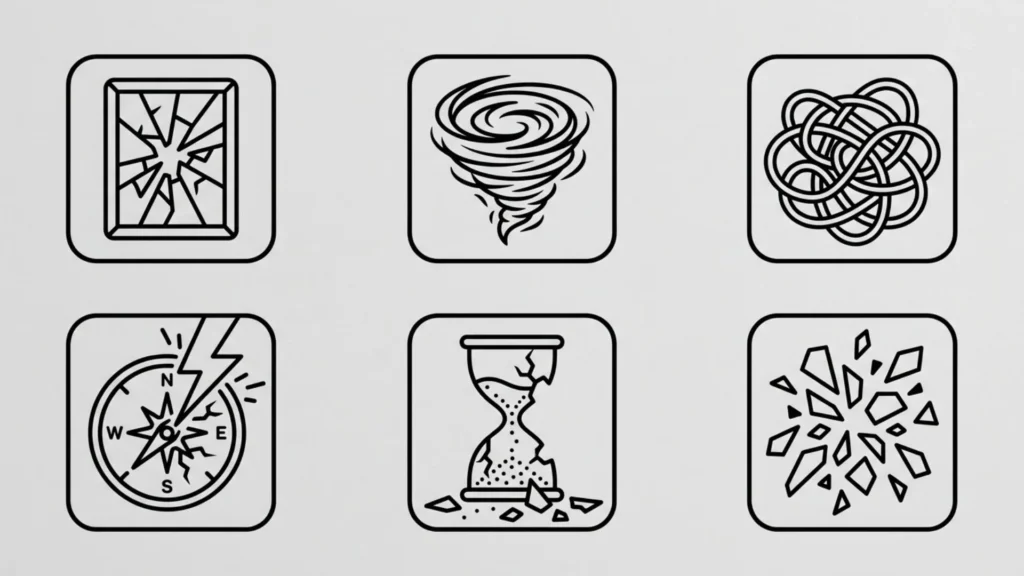
Many objects and images can symbolize chaos because they suggest disorder, confusion, unpredictability, or a lack of control. Examples include tangled lines, broken patterns, storms, swirling shapes, shattered objects, and mazes. In mythology and art, monsters, whirlpools, and destructive forces can also represent chaos. A chaos symbol does not always mean something negative; sometimes it represents change, uncertainty, or the breakdown of an old order before something new develops.
Chaos Symbol Origin
The idea of a chaos symbol does not come from one single ancient symbol or universal tradition. Different cultures have used their own images to express disorder, primordial forces, or uncertainty. In modern culture, fictional works, art, literature, games, and popular media have also created recognizable chaos symbols. One well-known example is the Chaos Star, which became strongly associated with chaos through modern fantasy and fiction rather than serving as a universal ancient symbol.
iPhone 17 Icons
The icons on an Apple iPhone 17 can communicate information about connectivity, battery status, privacy, notifications, and active features. Status-bar icons may indicate cellular service, Wi-Fi, battery level, location services, microphone or camera activity, and other system functions. Some icons can also change depending on the feature or setting currently being used. Because Apple’s interface can change with software updates, the meaning of a particular iPhone 17 icon is best understood from the current iOS interface and its settings.
Thieves Guild Symbols
Thieves guild symbols are fictional or historical-inspired marks used to represent secret groups of thieves, rogues, or underground organizations. In fantasy stories and games, these symbols may appear as hidden signs, coded markings, coins, daggers, masks, or stylized emblems. Their meanings depend heavily on the fictional world in which they appear. A symbol might identify a guild member, mark a safe location, communicate a warning, or indicate that a particular service is available.
Musical Symbols
Musical symbols are written signs that help musicians understand pitch, rhythm, timing, dynamics, and performance instructions. Common examples include the treble clef, bass clef, quarter note, eighth note, rest, sharp, flat, natural, and dynamic markings such as p for soft and f for loud. These symbols form part of written musical notation and allow performers to interpret a composition consistently. Learning the basic symbols makes it much easier for beginners to read and understand sheet music.
Music Symbols
Music symbols are visual signs used to communicate musical ideas, sounds, rhythm, and performance instructions. Common examples include the treble clef, bass clef, sharp, flat, natural, eighth note, quarter note, and rest symbols. Each symbol has a specific purpose and helps musicians understand how a piece of music should be played or sung. Beyond musical notation, music symbols are also commonly used in tattoos, logos, artwork, social media posts, and decorative designs.
What Represents Creativity?
Creativity can be represented by many different symbols, depending on the context. Common examples include a light bulb, paintbrush, pencil, musical note, open book, star, or colorful abstract shapes. A light bulb often suggests a new idea or inspiration, while a paintbrush may represent artistic expression. Musical notes can symbolize creative expression through music, making them useful symbols for artists, musicians, designers, and other creative people.
iPhone Display Meaning
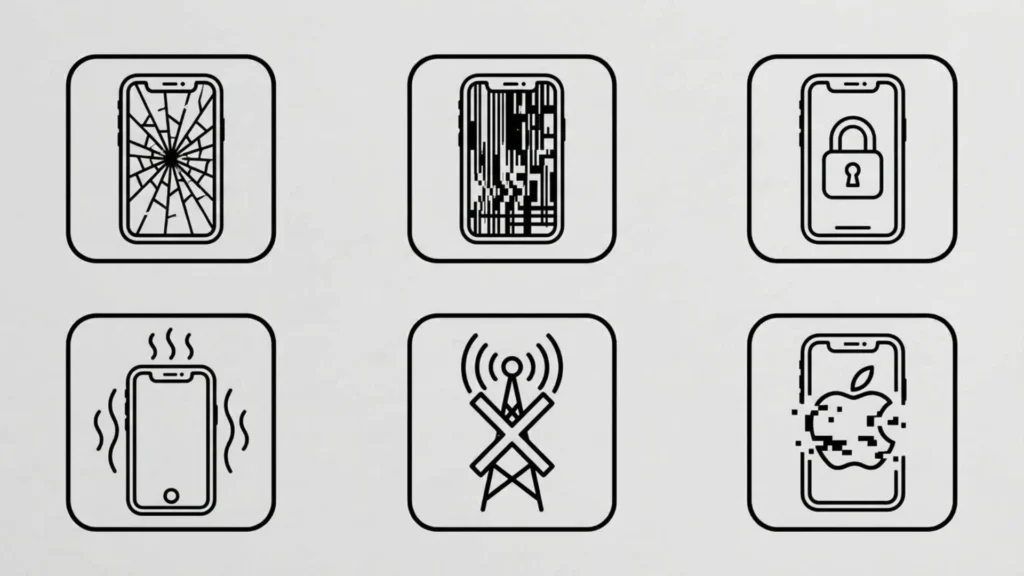
The symbols displayed on an iPhone screen provide quick information about the device’s status and active features. They can show details about cellular signal, Wi-Fi, battery level, location services, Bluetooth, Focus modes, and other functions. Understanding these symbols can help you know what your iPhone is doing without opening individual settings or apps. Some icons remain visible regularly, while others appear only when a particular feature is active.
Symbols at Top of iPhone
The symbols at the top of an iPhone screen are generally called status icons. They provide information about your network connection, battery, wireless services, and certain active features. Depending on your iPhone model and settings, you may see icons such as the Wi-Fi symbol, cellular signal bars, battery icon, VPN indicator, or location services indicator. The exact arrangement can vary between iPhone models and iOS versions.
What Are the Symbols at the Top of My iPhone?
If you are wondering what the symbols at the top of your iPhone mean, most of them are there to give you a quick view of your device’s current status. For example, the Wi-Fi icon indicates a wireless network connection, while the battery icon shows your remaining battery level. Other symbols may appear temporarily when features such as Airplane Mode, Personal Hotspot, Focus, or location services are being used.
iPhone Icons Top of Screen
The icons at the top of an iPhone screen can change depending on the device, connection, and features you have enabled. Some of the most familiar icons relate to cellular service, Wi-Fi, battery, and wireless connections. You may also notice special indicators when your iPhone is using certain services or when a feature needs your attention. Learning these icons makes it easier to understand your phone’s status at a glance.
iPhone Top of Screen Symbols
iPhone top-of-screen symbols are small visual indicators that communicate important information without requiring you to open Settings. They can tell you whether your phone has cellular service, Wi-Fi access, a wireless connection, or a particular system feature enabled. If an unfamiliar symbol suddenly appears, its meaning can usually be identified by checking Apple’s current iPhone status-icon documentation or the relevant feature settings.
Meaning of Icons on iPhone
The meaning of icons on an iPhone depends on where the icon appears and what feature it represents. Status icons can provide information about network connectivity, battery, privacy indicators, Focus, Airplane Mode, Personal Hotspot, and other functions. Some icons are permanent status indicators, while others appear only under specific conditions. Knowing their meanings can help you troubleshoot connection problems and understand which features are currently active.
iPhone Screen Symbols
iPhone screen symbols are designed to communicate information quickly through simple visual indicators. They can appear in the status bar, Control Center, Settings, apps, and notifications, so their meanings are not always the same. Common symbols include connectivity and battery indicators, while other icons may represent privacy, location, audio, or system features. If you are unsure about a particular symbol, identifying where it appears on the screen is the first step toward understanding it.
iPhone Icons Meaning
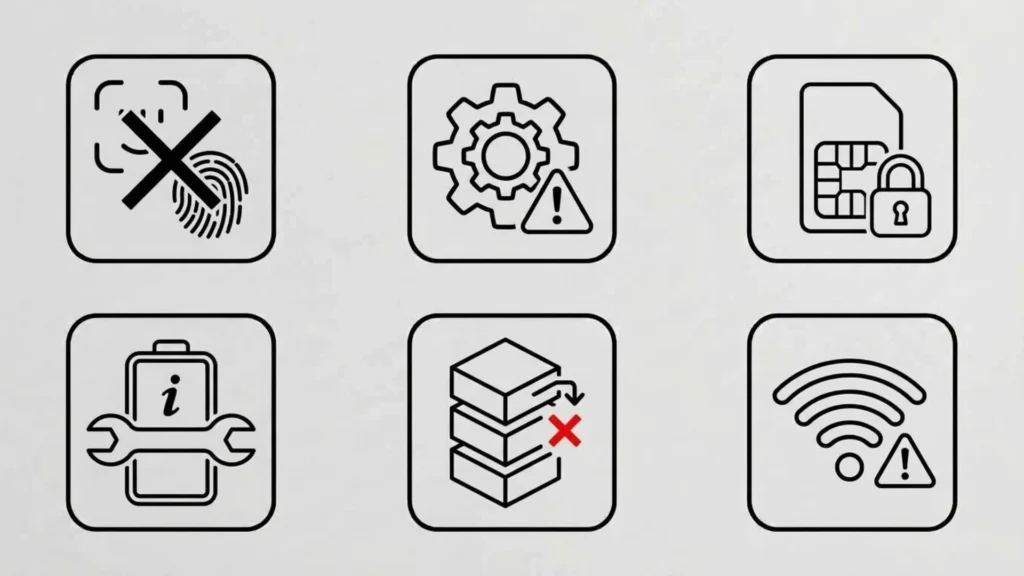
iPhone par nazar aane wale icons aapko network connection, battery, Wi-Fi, location services, calls, notifications, and other device activities ke baare mein quick information dete hain. Har icon ka apna meaning hota hai, aur kuch symbols sirf specific situations mein appear hote hain.
iPhone Icons on Top of Screen
iPhone screen ke top par status bar mein different icons appear hote hain. Ye symbols aapke cellular signal, Wi-Fi connection, battery level, Focus mode, and other active features ka status show karte hain. Kuch newer iPhone models par Dynamic Island bhi certain alerts aur activities display kar sakta hai.
Phone Symbols on iPhone
Phone symbols on iPhone mein call-related icons ke saath cellular signal, Wi-Fi, voicemail, call forwarding, and other communication indicators shamil ho sakte hain. In symbols ko samajhna aapko quickly identify karne mein help karta hai ke aapke iPhone par kaunsi phone service active hai.
iPhone Screen Top Icons
iPhone screen ke top icons ek glance mein important device information provide karte hain. Signal bars se network strength, Wi-Fi icon se internet connection, aur battery symbol se power status ka pata chalta hai. Kuch icons temporary hote hain aur sirf kisi active feature ya setting ke waqt appear hote hain.
iPhone Symbols on Top of Screen Meaning: iPhone 11
iPhone 11 par top-of-screen symbols mein cellular signal, Wi-Fi, battery, location, and other status indicators shamil ho sakte hain. Kuch icons Control Center ya specific features ke active hone par additional information provide karte hain. In symbols ka meaning samajhne se aap apne iPhone ki current status ko easily check kar sakte hain.
iPhone Icons List and Meanings PDF
A complete iPhone icons list and meanings PDF useful reference ho sakti hai, especially agar aap different status symbols ko ek jagah save karke baad mein check karna chahte hain. Aap common iPhone icons ko categories ke according organize kar sakte hain, including connectivity, battery, calls, privacy, location, and system alerts.
iPhone 16 Symbols on Top of Screen
The iPhone 16 symbols on top of screen can include familiar status indicators as well as newer ways of displaying information through the Dynamic Island. The exact icons you see can change depending on your connection, active features, battery status, privacy settings, and ongoing activities. Understanding these symbols makes it easier to know what your iPhone is doing at any moment.
iPhone Icons List and Meanings
iPhone icons are small symbols that appear on your screen to show important information about your device’s current status. These iPhone icons and meanings help users understand network connections, battery health, privacy settings, notifications, and active features without opening different menus.
Whether you are using an older model like iPhone 11 or a newer device like iPhone 16, most system symbols work in a similar way. However, newer iPhones may display additional indicators through features like Dynamic Island and Live Activities.
Here are some of the most common iPhone icons and their meanings:
| iPhone Icon | Meaning |
| Wi-Fi Symbol | Your iPhone is connected to a wireless internet network |
| Cellular Bars | Shows the strength of your mobile network signal |
| 5G / LTE / 4G | Displays your current cellular connection type |
| Battery Icon | Shows remaining battery percentage |
| Charging Battery | Your iPhone is connected to power and charging |
| Yellow Battery Icon | Low Power Mode is enabled |
| Green Battery Icon | Battery is charging |
| Bluetooth Symbol | Bluetooth is turned on or connected to another device |
| VPN Icon | A VPN connection is active |
| Location Arrow | An app is using or recently used your location |
| Lock Icon | Screen orientation is locked or device is secured |
| Alarm Clock | An alarm has been scheduled |
| Moon Icon | Focus Mode or Do Not Disturb is active |
| Orange Dot | Microphone is currently being used by an app |
| Green Dot | Camera or camera and microphone are being used |
| Airplane Icon | Airplane Mode is turned on |
| SOS Icon | Emergency cellular service is available |
| Headphone Icon | Audio device is connected |
Understanding these symbols helps you quickly identify problems. For example, if you see SOS instead of network bars, your iPhone may not have a normal cellular connection. Similarly, an orange or green privacy indicator lets you know when apps are accessing your microphone or camera.
iPhone Symbols on Pull Down Screen
The pull-down screen on iPhone, also known as Control Center, provides quick access to important settings and features. You can open it by swiping down from the top-right corner on newer iPhones.
These iPhone Control Center symbols allow you to manage different functions without searching through Settings.
Common iPhone pull down screen symbols include:
| Control Center Symbol | Meaning |
| Wi-Fi | Turns wireless internet connection on or off |
| Bluetooth | Controls Bluetooth connections |
| Cellular Data | Enables or disables mobile data |
| Airplane Mode | Disconnects wireless communication |
| Focus | Activates Do Not Disturb, Sleep, Work, or custom modes |
| Flashlight | Turns the LED flashlight on |
| Camera | Opens the camera quickly |
| Screen Recording | Records your iPhone screen |
| Screen Mirroring | Shares your screen with another Apple device |
| Brightness Control | Adjusts display brightness |
| Volume Control | Changes sound level |
| Low Power Mode | Saves battery usage |
| Dark Mode | Changes screen appearance |
| Timer | Opens timer controls |
| QR Scanner | Scans QR codes quickly |
You can customize these icons by going to:
Settings → Control Center
Adding frequently used shortcuts makes your iPhone experience faster and more convenient.
iPhone Symbols on Top of Screen Meaning (iPhone 11)
The top area of the iPhone 11 screen is called the status bar. It displays important information about your device, including network connection, battery level, privacy alerts, and active features.
Common iPhone 11 status bar symbols include:
| Symbol | Meaning |
| Signal Bars | Shows mobile network strength |
| Wi-Fi Icon | Connected to Wi-Fi internet |
| LTE / 4G | Current cellular network |
| Battery Percentage | Remaining battery level |
| Charging Symbol | Device is charging |
| Bluetooth | Bluetooth is active |
| VPN | VPN service is connected |
| Location Arrow | Location Services are active |
| Alarm | Alarm is set |
| Moon Icon | Focus mode is enabled |
| Orange Dot | Microphone access indicator |
| Green Dot | Camera access indicator |
The iPhone 11 does not have Dynamic Island, so notifications and activities appear differently compared to newer models. However, privacy indicators like the orange and green dots are available through newer versions of iOS.
iPhone 16 Symbols on Top of Screen
The iPhone 16 includes many familiar iPhone status bar icons along with newer indicators supported by modern iOS features. Because iPhone 16 models use Dynamic Island, some notifications and activities appear around the front camera area.
Important iPhone 16 symbols include:
| Symbol | Meaning |
| 5G / 5G+ | High-speed cellular connection |
| Wi-Fi | Connected wireless network |
| Battery Percentage | Remaining battery power |
| Charging Icon | Battery charging status |
| Dynamic Island Activity | Live information from apps |
| Satellite Icon | Satellite connection availability |
| VPN | Secure network connection |
| Location Arrow | Location usage |
| Orange Dot | Microphone in use |
| Green Dot | Camera in use |
| Focus Icon | Active Focus mode |
| AirDrop Symbol | File sharing activity |
iPhone 16 also supports advanced features such as Live Activities, improved privacy indicators, and Dynamic Island notifications that make important information easier to access.
iPhone Icons List and Meanings Free
Many users search for an iPhone icons list and meanings free because they want a simple reference guide without downloading paid apps. Apple provides built-in explanations for many symbols, but having a complete list makes understanding iPhone features much easier.
Free iPhone icon guides usually explain:
- Status bar icons
- Control Center symbols
- Battery indicators
- Privacy alerts
- Network symbols
- Location icons
- Notification symbols
- Dynamic Island indicators
- Find My symbols
Learning these icons helps users troubleshoot common issues, protect privacy, and use their iPhone features more effectively.
For example:
- Seeing an orange dot helps you know when an app uses your microphone.
- Seeing a location arrow tells you that an app is accessing your location.
- Seeing a VPN icon confirms that your internet connection is protected.
Find My iPhone Symbols Meaning
The Find My iPhone app uses different symbols to show device locations, tracking status, and available actions. These icons help users find lost Apple devices, AirTags, and shared locations.
Common Find My symbols include:
| Find My Symbol | Meaning |
| Blue Dot | Your current location |
| Green Dot | Device is online and location is available |
| Gray Device Icon | Device is offline |
| Play Sound Icon | Makes the device produce a sound |
| Lost Mode Symbol | Device has been marked as lost |
| Direction Arrow | Helps navigate to the device |
| Notify When Found | Alerts you when the device is located |
| AirTag Symbol | Shows a connected tracking device |
Understanding these symbols makes it easier to use Apple’s location services and recover lost devices.
iPhone Status Bar Settings
The iPhone status bar automatically displays symbols based on your device activity. However, many icons are connected to specific settings that you can manage.
Important status bar settings include:
Location Services
Go to:
Settings → Privacy & Security → Location Services
Here you can control which apps can access your location.
Battery Settings
Settings → Battery
You can enable:
- Battery Percentage
- Low Power Mode
- Battery Health information
Control Center Settings
Settings → Control Center
You can add or remove quick-access icons.
Focus Settings
Settings → Focus
You can manage:
- Do Not Disturb
- Sleep
- Work
- Personal Focus modes
Managing these settings helps you understand why certain icons appear and gives you better control over your iPhone.
Dynamic Island Symbols Meaning
Dynamic Island is an interactive feature available on newer iPhone models that displays notifications, alerts, and live activities around the front camera area.
Unlike traditional notifications, Dynamic Island symbols can expand, shrink, and provide real-time updates.
Common Dynamic Island symbols include:
| Dynamic Island Symbol | Meaning |
| Phone Icon | Active phone call |
| Music Symbol | Audio playback |
| Timer | Countdown timer running |
| Navigation Arrow | Directions from Maps |
| AirDrop Icon | File transfer activity |
| Face ID Icon | Face authentication |
| Charging Animation | iPhone connected to power |
| Voice Recording | Microphone recording |
| Live Activity | Real-time app updates |
Dynamic Island can show information from apps like Maps, Music, Clock, Fitness, and other supported applications. It makes multitasking easier by keeping important updates visible without interrupting what you are doing.
Top 12 iPhone Symbols on Top of Screen Meaning and Their Meanings
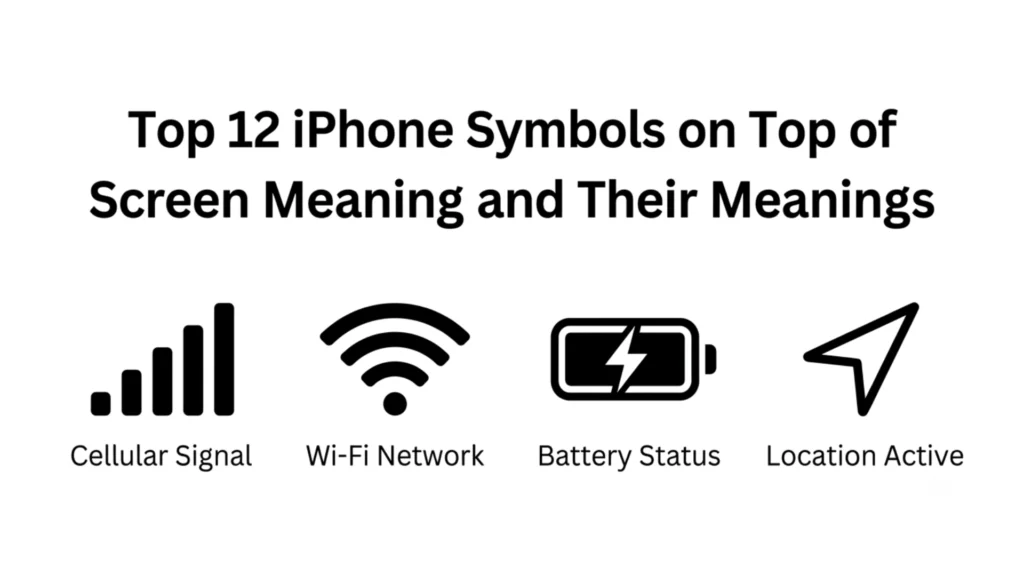
1. Cellular Signal Bars: Network Strength
The vertical bars show how strong your mobile signal is. More bars generally mean better call quality and faster cellular data. If you only see one bar or “SOS,” your coverage is limited.
People rely on this icon when traveling, working remotely, or checking whether poor call quality is caused by weak reception.
Best for: Checking coverage, troubleshooting calls, traveling, monitoring signal, mobile data use.
2. 5G, LTE, or 4G Icon: Mobile Data Connection
This icon tells you which mobile network technology your carrier is using. A 5G connection usually provides the fastest speeds, while LTE and 4G remain reliable for streaming, browsing, and video calls.
The icon may change as you move between coverage areas.
Best for: Streaming, gaming, video calls, downloads, monitoring internet speed.
3. Wi-Fi Symbol: Wireless Internet
The Wi-Fi icon appears when your iPhone is connected to a wireless network. A strong Wi-Fi connection often provides faster internet while reducing mobile data usage.
If the icon disappears, your phone automatically switches to cellular data if available.
Best for: Home internet, office work, public Wi-Fi, video streaming, app downloads.
4. Battery Icon: Power Level
The battery icon shows approximately how much battery remains. When it turns red, your battery is running low. A green battery with a lightning bolt indicates your iPhone is charging.
Monitoring this icon helps you avoid unexpected shutdowns.
Best for: Daily battery management, charging reminders, travel, work, emergency planning.
5. Bluetooth Symbol: Wireless Connections
The Bluetooth icon indicates that Bluetooth is turned on. Depending on the situation, it may also show that your iPhone is connected to devices such as wireless earbuds, speakers, smartwatches, keyboards, or your car.
Leaving Bluetooth enabled generally has minimal impact on battery life.
Best for: AirPods, Apple Watch, speakers, vehicles, wireless accessories.
6. Location Arrow: Location Services
A small arrow means an app is using or has recently used your location. Navigation apps, weather apps, ride-sharing services, and fitness apps commonly trigger this symbol.
If you notice it frequently, you can review which apps have location permission in Settings.
Best for: GPS navigation, weather apps, fitness tracking, travel, privacy checks.
7. Lock with Circular Arrow: Portrait Orientation Lock
This icon tells you that screen rotation has been locked. Even if you rotate your phone, the display remains in portrait orientation until you disable the setting.
It’s especially useful while reading in bed or using your phone one-handed.
Best for: Reading, browsing, video calls, preventing accidental rotation, accessibility.
8. Focus or Moon Icon: Focus Mode
A moon or custom Focus icon appears when Focus Mode is active. Depending on your settings, notifications, calls, and alerts may be limited to reduce distractions.
Apple allows users to create different Focus profiles for work, sleep, personal time, or driving.
Best for: Productivity, studying, sleeping, meetings, reducing interruptions.
9. Airplane Mode Symbol: Wireless Radios Off
The airplane icon means Airplane Mode is enabled. Cellular connections are disabled, although you can manually turn Wi-Fi and Bluetooth back on if needed.
Many people use this mode during flights or to save battery when they don’t need network access.
Best for: Flying, battery saving, troubleshooting connectivity, reducing distractions.
10. Orange Microphone Indicator: Microphone Active
An orange dot appears whenever an app is actively using your microphone. This privacy feature helps you know when voice recording, calls, or voice assistants are listening.
If the dot appears unexpectedly, review your app permissions.
Best for: Privacy awareness, recording, phone calls, voice notes, security monitoring.
11. Green Camera Indicator: Camera Active
A green dot means an app is currently using your camera. This could happen during FaceTime, video recording, scanning QR codes, or using social media apps.
The indicator helps users quickly detect unexpected camera access.
Best for: Privacy, video calls, recording videos, scanning documents, security.
12. VPN Icon: Secure Internet Connection
The VPN icon appears when your iPhone is connected through a Virtual Private Network. A VPN encrypts internet traffic and can improve privacy when using public Wi-Fi.
Many businesses and travelers regularly use VPN services.
Best for: Secure browsing, remote work, public Wi-Fi, privacy, encrypted connections.
Best iPhone Symbols on Top of Screen Meaning for Quick Recognition
Although these aren’t decorative symbols for tattoos or logos, some status icons are the most useful to recognize immediately because they affect everyday phone use.
- Battery icon
- Wi-Fi icon
- Cellular signal bars
- Focus mode icon
- Airplane Mode icon
- Camera privacy indicator
- Microphone privacy indicator
- Location Services arrow
Learning these icons first will help you understand nearly everything happening on your iPhone.
Best iPhone Symbols for Logos and Design Inspiration
Apple’s status icons are excellent examples of clean, functional design. They communicate information using simple shapes that are easy to recognize within seconds.
Designers often study these icons because they demonstrate several important principles:
- Minimal visual clutter
- Universal recognition
- Clear shapes
- Consistent sizing
- Easy readability on small screens
If you’re creating app interfaces, posters, dashboards, or digital products, using similarly simple icons can improve usability.
Best iPhone Status Icons for Everyday Understanding
Some icons deserve extra attention because they directly affect your privacy, connectivity, or battery life.
For example:
- The camera and microphone indicators help protect your privacy.
- The battery icon helps prevent unexpected shutdowns.
- The Wi-Fi and cellular icons explain internet performance.
- The Focus icon reminds you why notifications may be missing.
- The location arrow shows when apps access your location.
Understanding these symbols makes troubleshooting much easier and helps you use your iPhone more confidently.
Before Interpreting New iPhone Symbols
Apple occasionally introduces new status icons through iOS updates. Some icons may also appear only on specific iPhone models or when certain accessibility features are enabled.
If you notice an unfamiliar icon:
- Check whether you’ve recently updated iOS.
- Open Control Center for additional details.
- Review Settings if the icon stays visible.
- Remember that some carrier-specific icons may vary by region.
Taking a moment to understand a new icon can prevent confusion and help you spot important privacy or connectivity changes.
How to Choose the Right Way to Understand iPhone Symbols on Top of Screen Meaning
Instead of memorizing every icon, focus on understanding the categories they belong to.
Ask yourself:
- Is it related to battery?
- Does it involve internet connectivity?
- Is it a privacy indicator?
- Does it affect notifications?
- Is it showing hardware activity?
Once you identify the category, understanding the icon becomes much easier. Apple’s icons are intentionally designed to be simple, logical, and consistent across devices.
FAQs About iPhone Symbols on Top of Screen Meaning
What do the symbols at the top of my iPhone screen mean?
They are status icons that display information about your battery, network connection, Wi-Fi, Bluetooth, location services, Focus mode, privacy indicators, and other active features. They help you understand your iPhone’s current status instantly.
What does the orange dot on my iPhone mean?
The orange dot indicates that an app is currently using your microphone. It’s a privacy feature introduced by Apple so users always know when audio is being recorded or accessed.
What does the green dot mean on an iPhone?
The green dot appears whenever an app is actively using your camera. In some situations, it can also indicate simultaneous camera and microphone use, such as during a video call.
Why is there a moon icon on my iPhone?
A moon or other Focus icon means Focus Mode is enabled. Notifications and calls may be limited depending on your selected Focus settings, helping reduce interruptions.
What does the arrow icon mean?
The arrow indicates that Location Services are being used. This usually happens with navigation apps, weather services, delivery apps, or other software that requires your location.
Why is my battery icon yellow?
A yellow battery icon means Low Power Mode is turned on. This feature reduces background activity and helps your battery last longer until you can recharge.
What does SOS mean instead of signal bars?
“SOS” means your iPhone cannot connect to your regular mobile network but can still make emergency calls if supported in your region.
Why do some icons disappear?
On iPhones with Face ID, screen space is limited around the notch or Dynamic Island. Some status icons are hidden until you open Control Center, where you’ll see the complete list.
Final Thoughts
Understanding iPhone symbols on top of screen meaning doesn’t have to be complicated.
Once you recognize the most common status icons, you can quickly check your battery, internet connection, privacy settings, and device status without digging through menus.
The next time a new icon appears, you’ll have a much better idea of what it’s telling you and you’ll be able to use your iPhone with greater confidence.

Dylan Anderson is a writer who enjoys turning complex topics into simple, engaging content that readers can actually use. His work focuses on clear explanations, practical insights and storytelling that feels natural and relatable. He is also the fictional author of The Quiet Compass of Ashford and Where the Cedar Lantern Glows. When he’s away from his keyboard, Dylan enjoys hiking, reading, and discovering inspiration in everyday life. He believes great writing should be informative, easy to understand and enjoyable from beginning to end.
 Adam Sullivan